

Xogot on Mac: Beta 2 is here
A lot has happened since we launched our Xogot for Mac Beta more than a month ago.
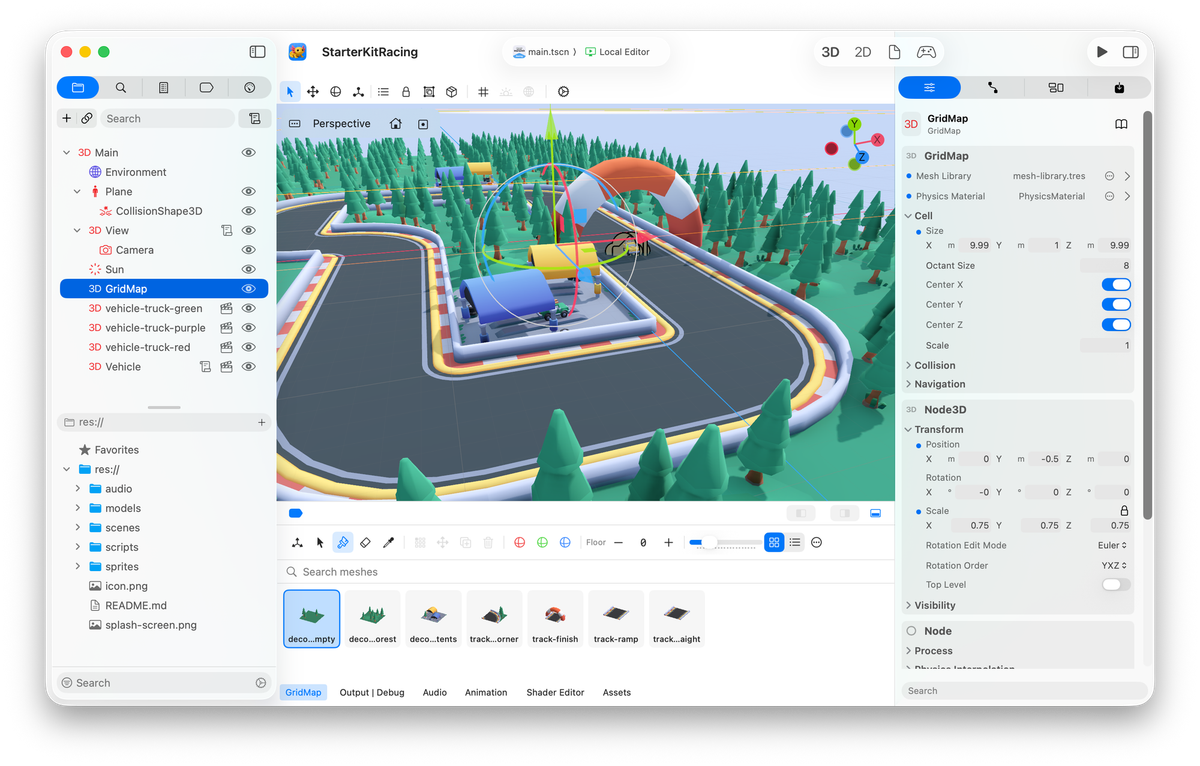
Among other things, Xogot was shown in Apple's State of the Union presentation at WWDC:
Xogot demo in the SwiftUI portion of the WWDC26 Platforms State of the Union presentation
Long-time readers of the blog will know that Xogot user interface is built entirely with SwiftUI. We have a single codebase that targets three different sets of idioms and interactions across iPhone, iPad and Mac. SwiftUI has allowed us to rapidly evolve the user interface in response to the needs of our users.
Download Xogot for Mac Beta 2In the weeks since we launched the first beta of Xogot on Mac, our community of users has provided invaluable bug reports, feature requests and pointed out the places where Xogot on Mac was falling short of being a fabulous Mac app. While we think that we are on a solid footing to be a great Mac app there is still a lot of work to be done, especially if we want to get one of those fancy Apple Design Award monoliths and a RAM discount.
Beta 2 includes about 200 Mac-specific improvements, along with another 100 or so improvements that are shared directly with the iPad and iPhone editions. While we prioritized anything that was holding back our testers and the day-to-day paper cuts, we have also squeezed in various long-term quality-of-life improvements.
We upgraded our beta from Godot 4.5 to Godot 4.6, but also managed to bring many of the Godot 4.7 improvements, and we added Intel Mac support, as well as macOS 15 (Sequoia) support. Continue reading for details on the changes from Beta 1 to Beta 2.
Updated Project Workflow
We made it simpler to find sample code and learn with our tutorials by surfacing these directly on the main screen (they were previously only available in a menu that nobody ever found):
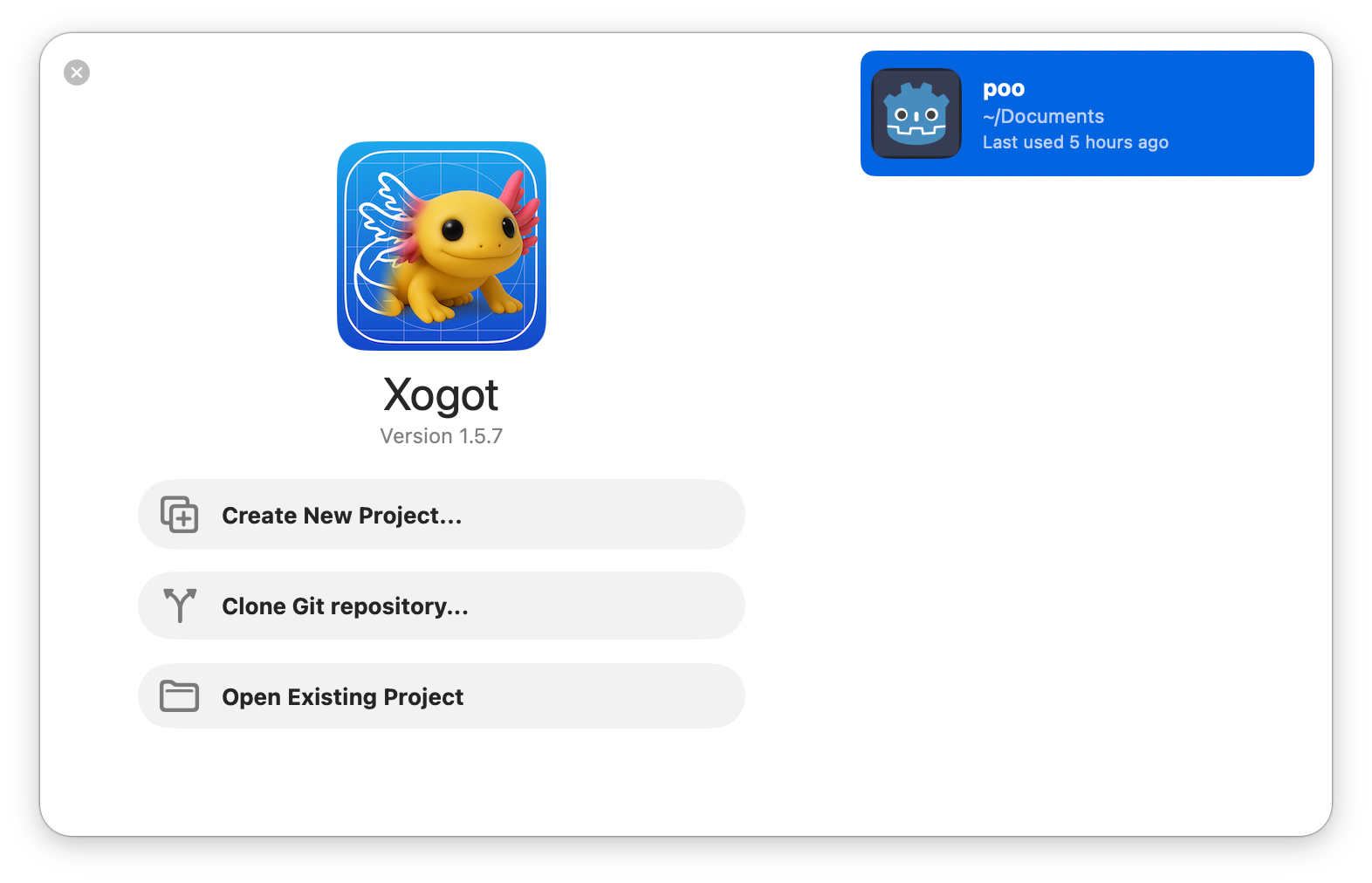
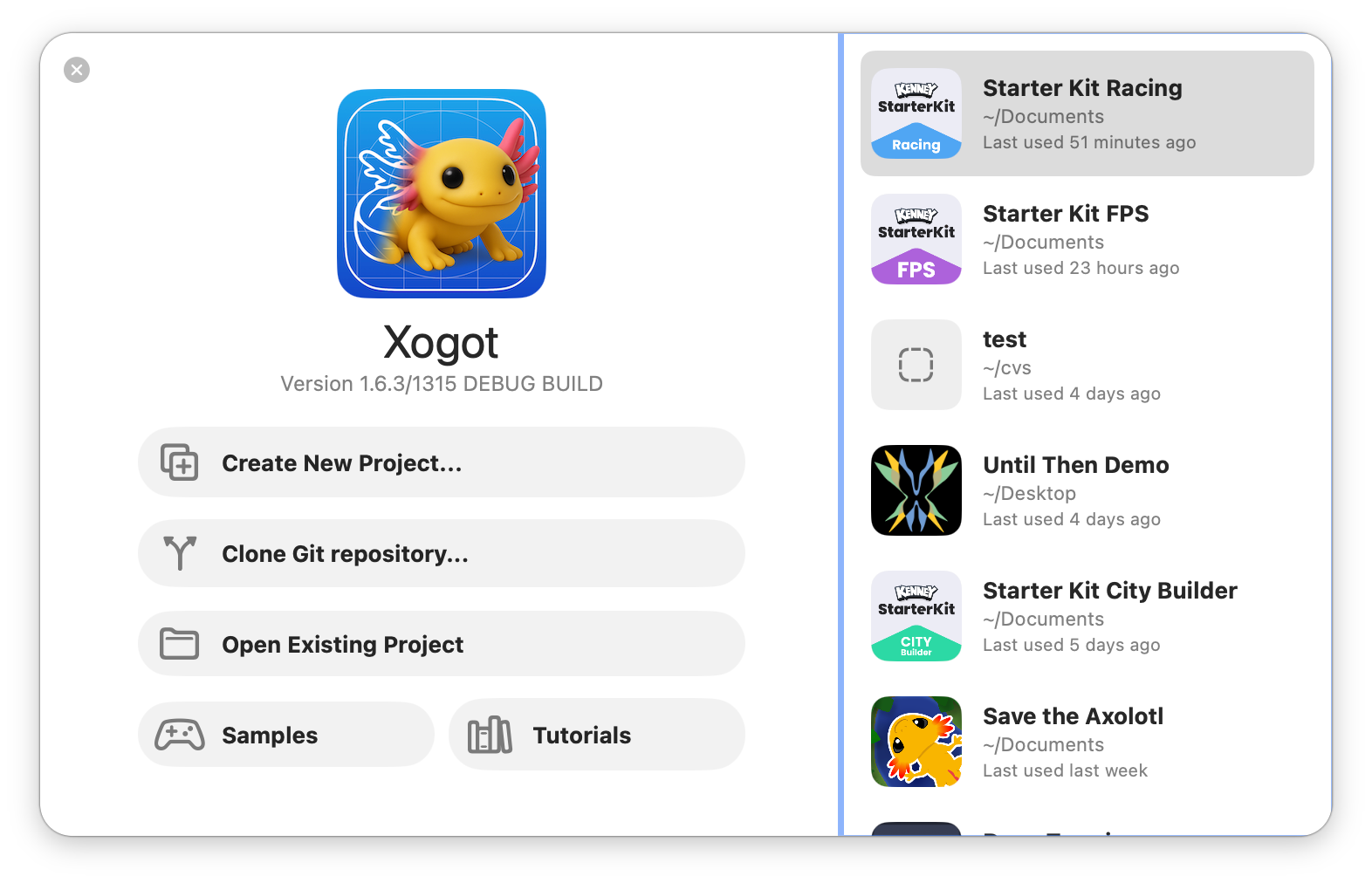
Project Launcher Before and After
Opening, running and closing projects now feels more predictable and more protective of your work. Our initial version had various quirks like slow pauses to launch a new copy of Xogot to open a new project, or the close scene button closing the project - those felt wrong every time we used it - so they have been fixed.
Version Checks: When opening a project, we will now warn you of potential version conflicts, and since we figured that you were probably in the zone, rather than bothering you with details, we now offer you to back up the project for you (by making a copy, or Zipping it up).
Auto Save by Default: Xogot now autosaves scenes and source files during common operations such as attaching scripts, closing scenes, running the project and switching focus away from the app.
Auto-reloading: Text files changed outside the editor will reload automatically if there are no changes, or let you decide whether to bring the changes - great if you are manipulating files externally with editors, agents or source control tools.
A More Native Mac Editor
The editor shell has moved closer to the expectations Mac developers have, removing some UI elements that worked well on the iPad but not so great on the Mac. We also continued to borrow extensive inspiration from Apple's Xcode and Apple Creator Studio apps.
Some notable differences between Beta 1 and Beta 2: added a splash of color to the file pad; reduced the aggressiveness of the black color for file names and the inspector; restyled the inspector contents and the navigation; surfaced change indicators; highlight the active editor mode; and a softer, milder breakpoint icon.
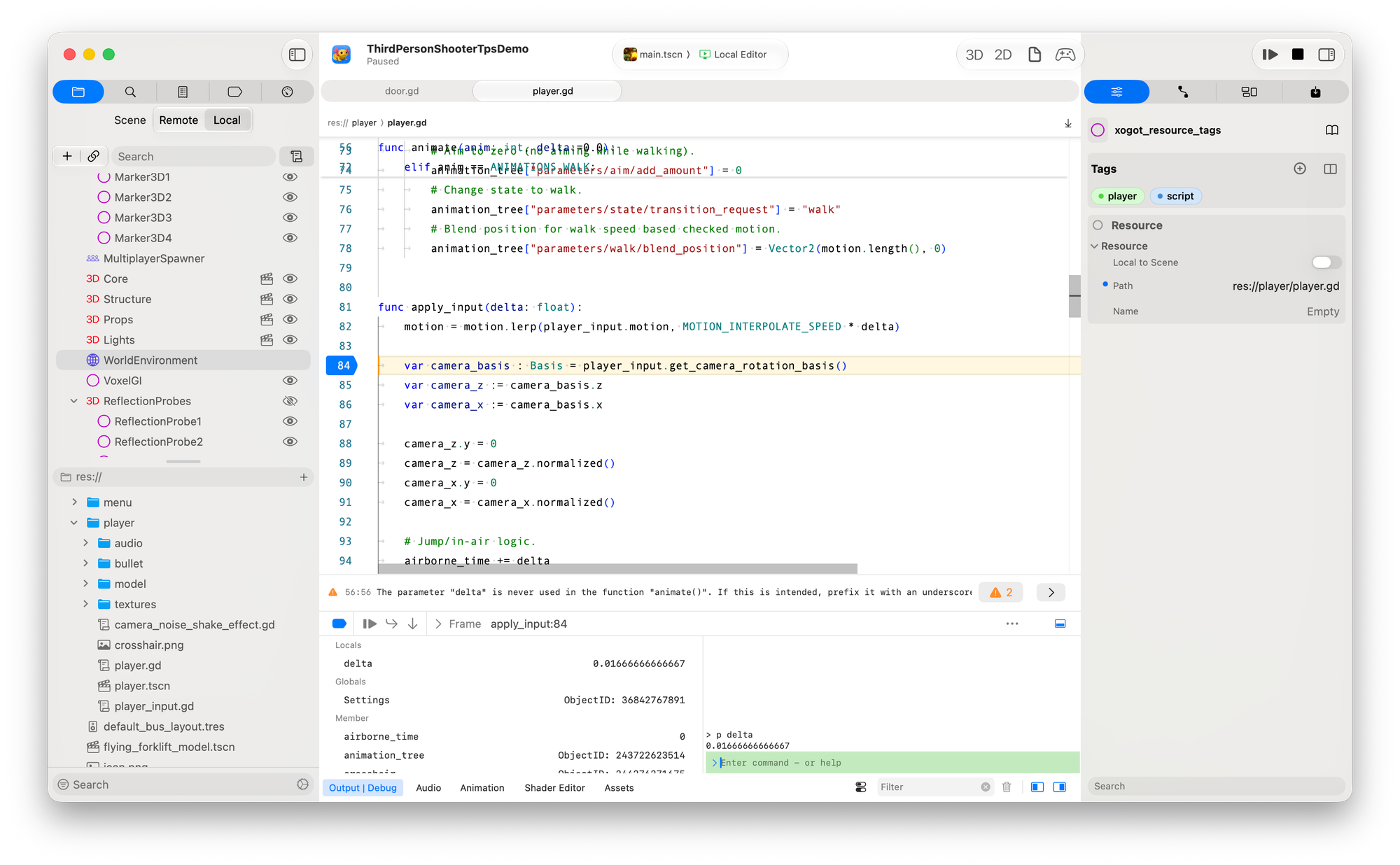
In Beta 1, we had one tab for Debug and one for Output - just like Godot does. But we found that these are used together often, and the layout was not exactly pleasant to look at. So we embraced Xcode's layout, which merged the two into a joint tab and you get UI affordances to switch them on and off:
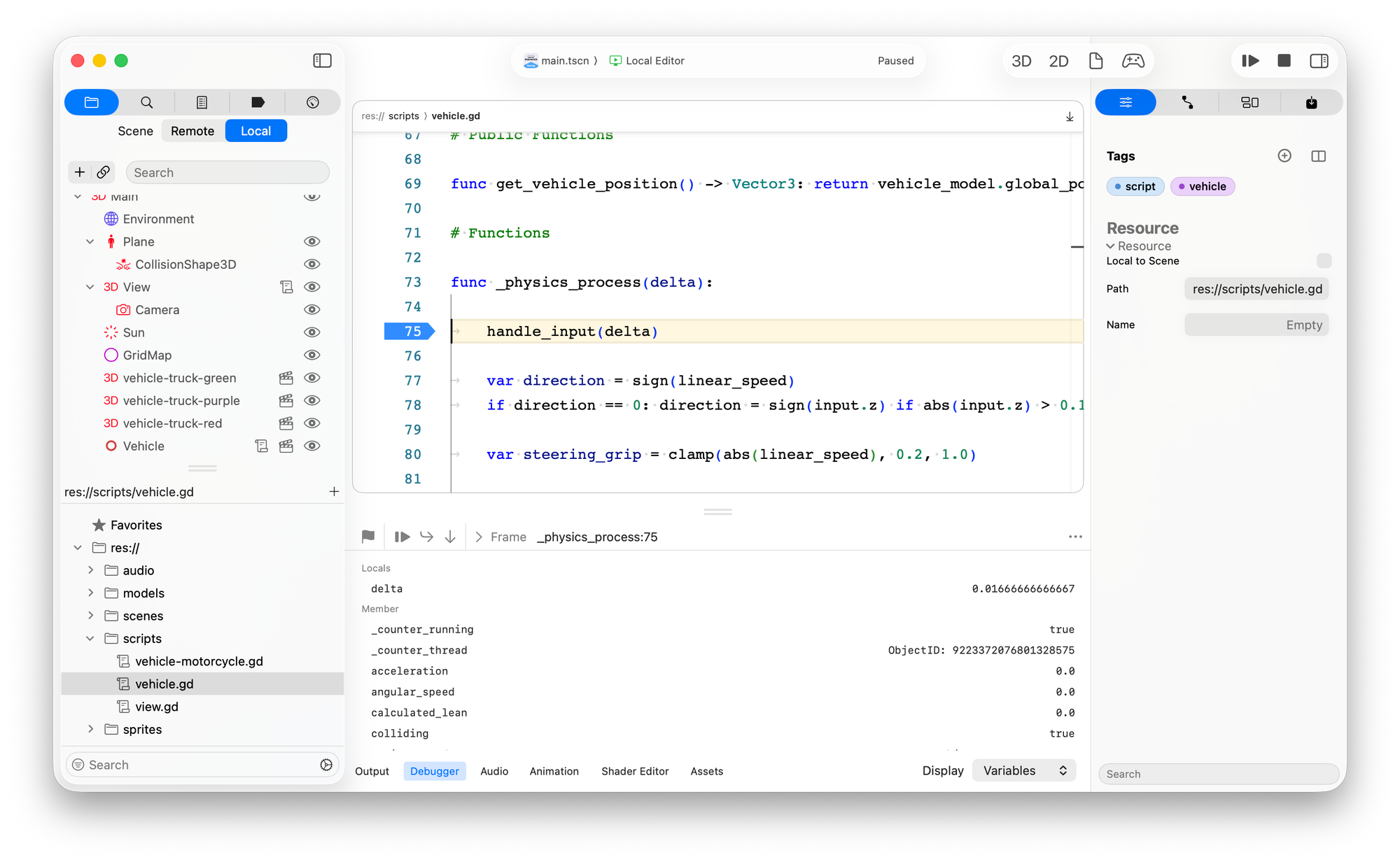
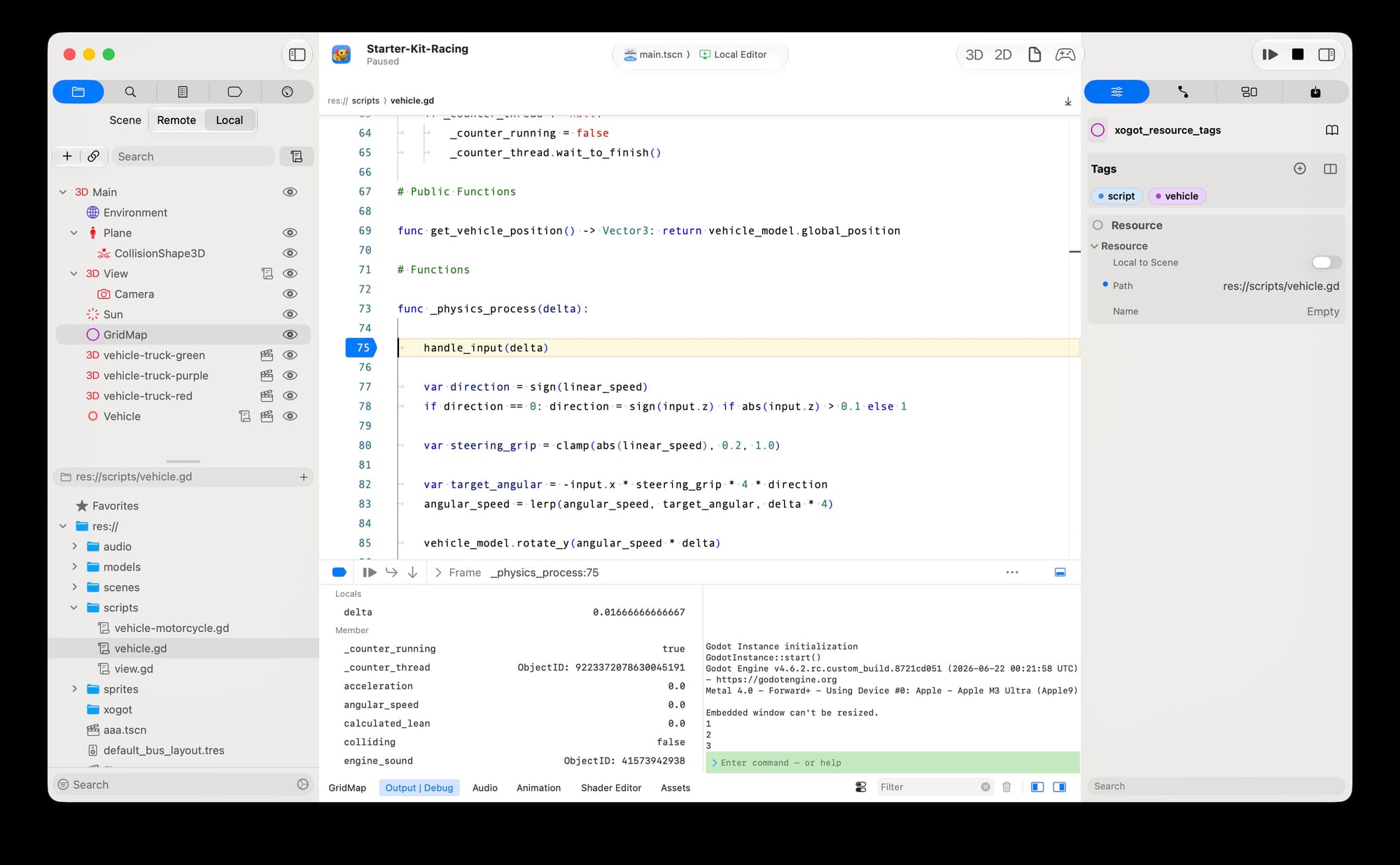
Beta 1 on the left; Beta 2 on the right.
When the program is paused, the debug portion also gets a command line entry where you can issue debugger commands, with an LLDB-like command interface, and you can evaluate expressions directly there. This was a bit of a personal preference, after years of using Xcode to build this, I have become used to it, and it is more convenient than using the F-keys.
We also replaced the very sharp and ugly breakpoint indicator. It is now mild and gentle.
Improvificated Inspector
We launched with a pretty ugly-looking inspector - I knew it was not great, but could not quite put my finger on it. So we did what every programmer with a lack of taste does: we went looking at what other apps are doing and we graciously borrowed ideas but most importantly
their font color, weight, size and alignments.
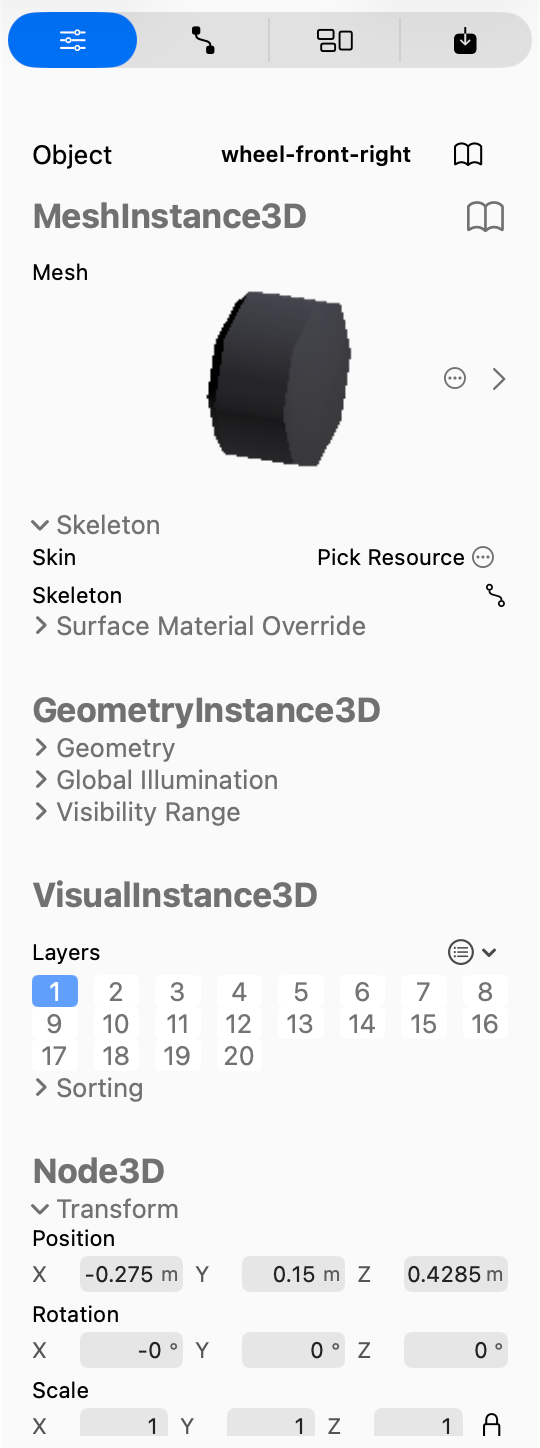
Milder colors in Beta 2, and suffixes are now rendered (ironically) as prefixes. Masks: I always struggle when I see the mask rendering property in Godot, so we introduced a chip-based rendering for bit masks that show their names
The Inspector has become both more capable and more Mac-like and we surfaced the property changed flag which was not available previously (or on the iPad).
Numeric fields can evaluate GDScript expressions, merely enter an expression in a text field and when you press return, it will compute it:

We provide RealityComposer-like UI affordances to increment/decrement (along with the same keyboard shortcuts that you find in Godot).
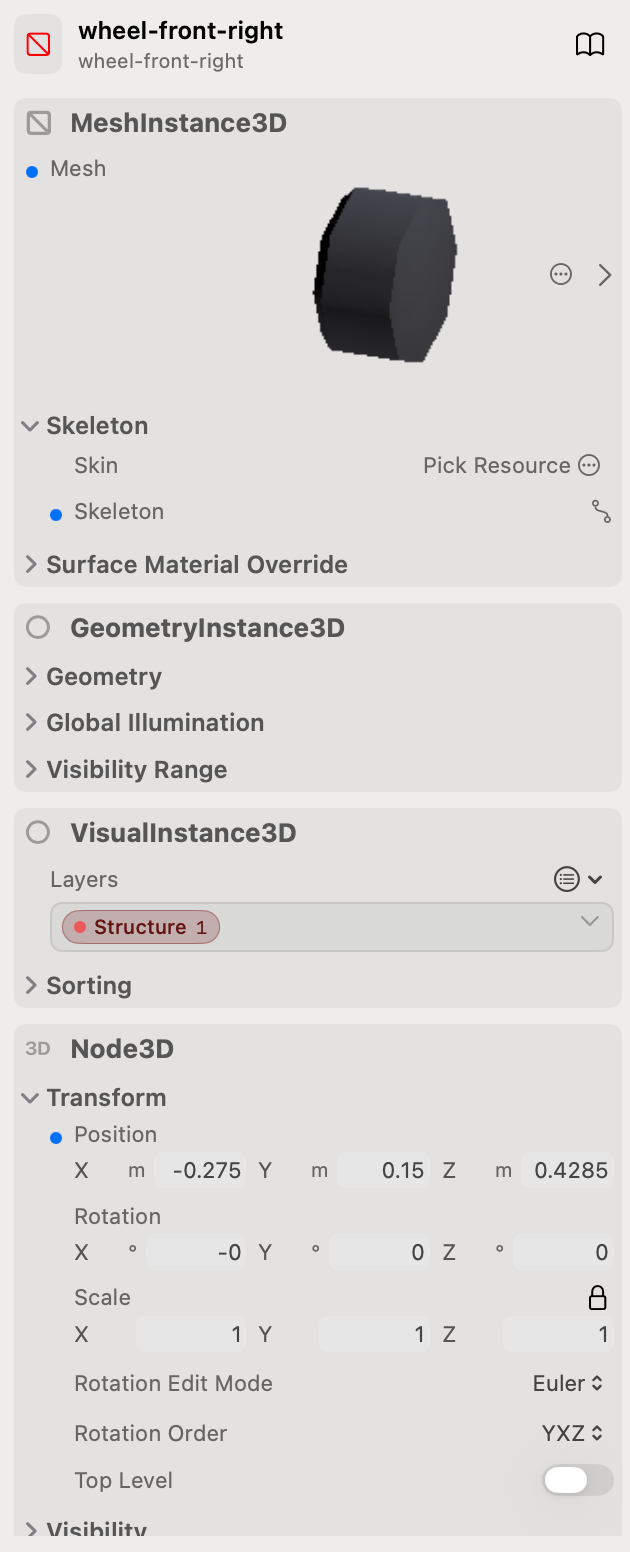
Beta 1 shipped with a very amateur set of tooltips, and it lacked type annotations. We have fixed that:
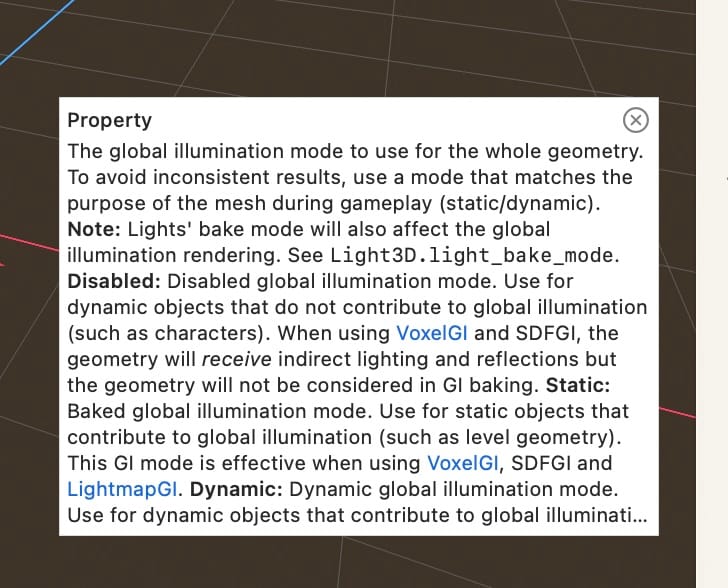
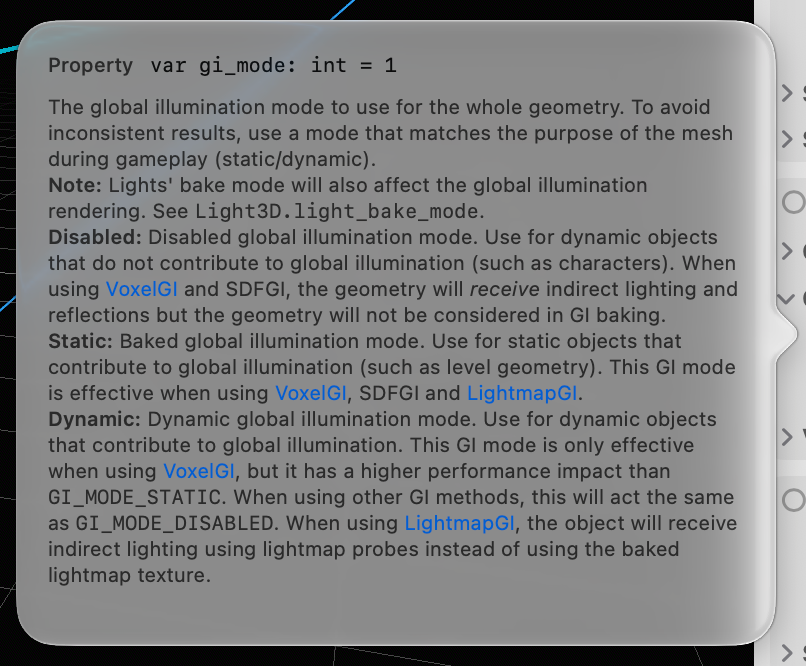
Godot's context help.
Large enumerations gain search (like Godot 4.7), optional property panels are supported (oops, we missed that one for the first beta) and we added support for copy/pasting entire category or section values.
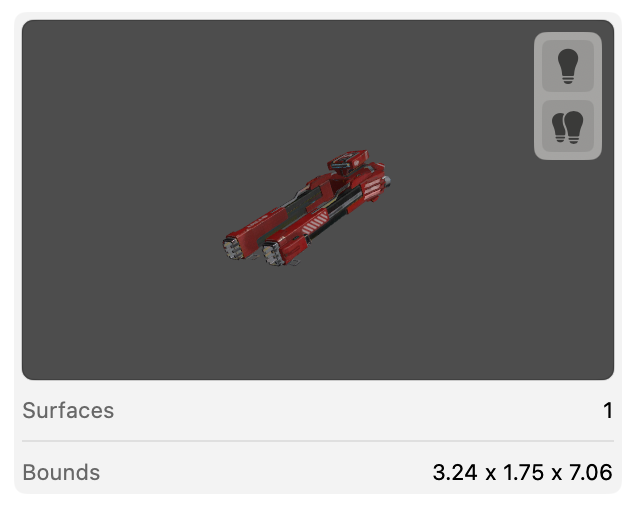
And we also brought in new SwiftUI-based Mesh, Texture and Material previews to the inspector. While it lets us add some nice SwiftUI touches to it, the major advantage is that we get more reliable previews for these objects and finer control:
Code, Search and Debugging Improvements
The code editor has gained several everyday capabilities: Find, Replace, Find All, configurable line height, arbitrary font sizes, improved zoom shortcuts, GDScript region folding, sticky scroll, better tab position preservation and most importantly a massive reduction in memory usage.
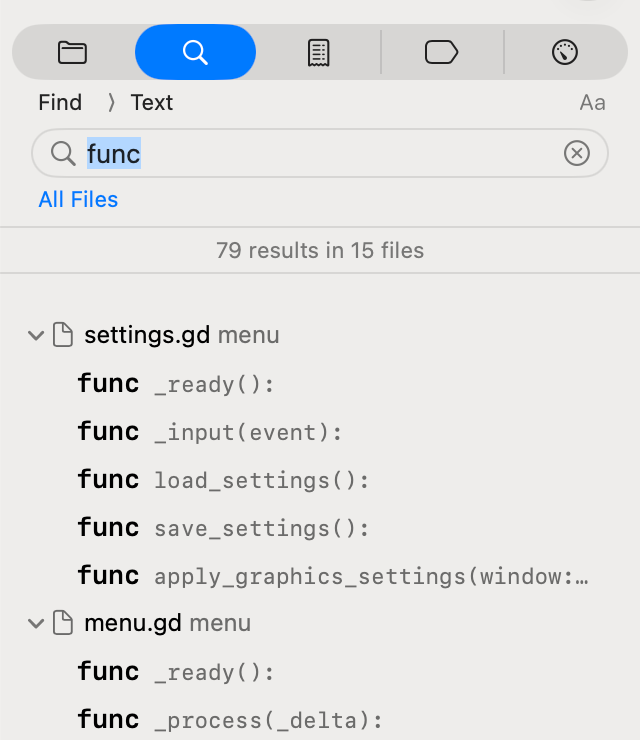
While you were probably hoping that I would not subject you to a screenshot of the Find panel, I spent much more time on implementing it, so now you have to see it:
The command palette is now a broader control surface for code and editor actions. Text editing commands are available from the unified palette, shortcuts are shown and history is available with the up arrow:
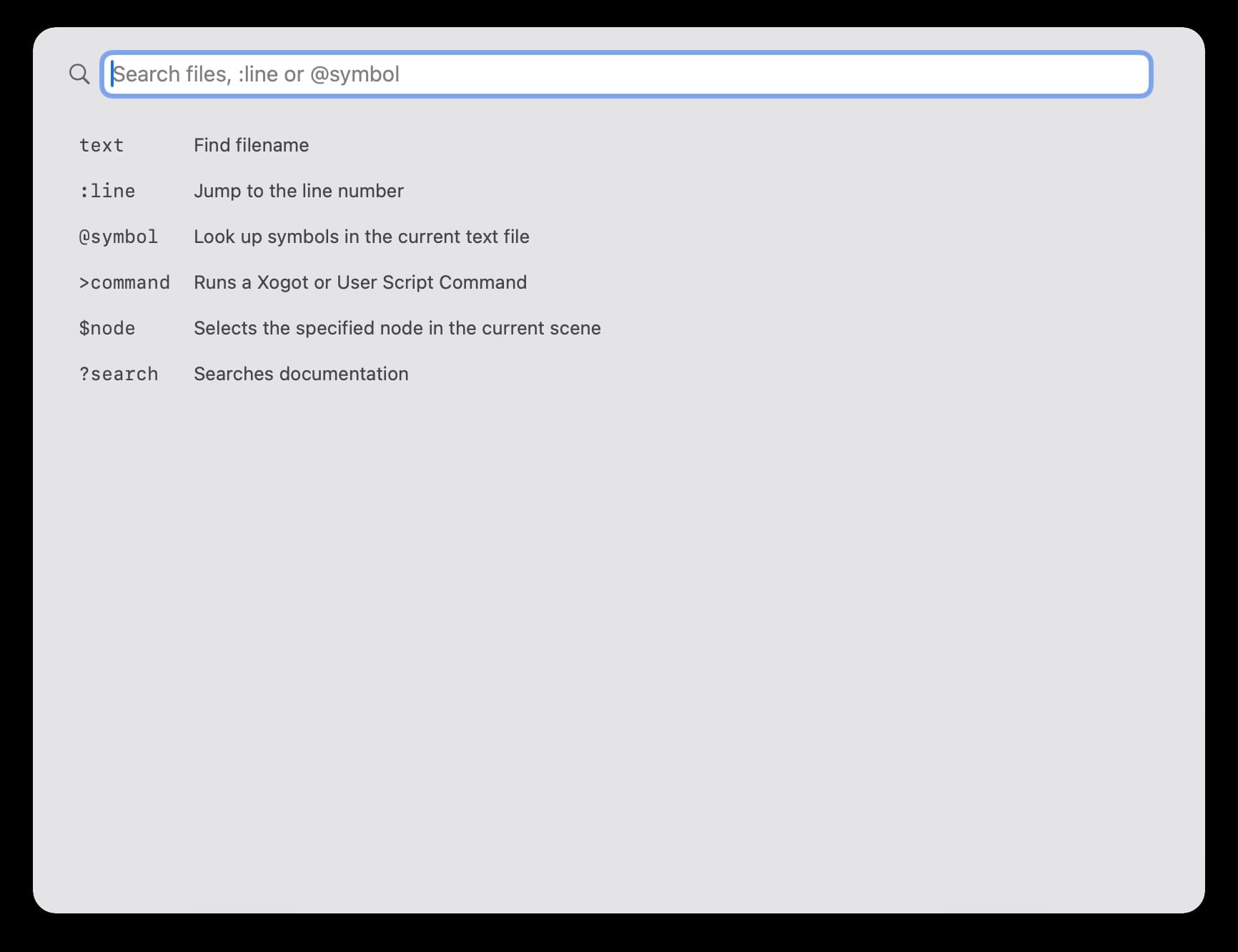
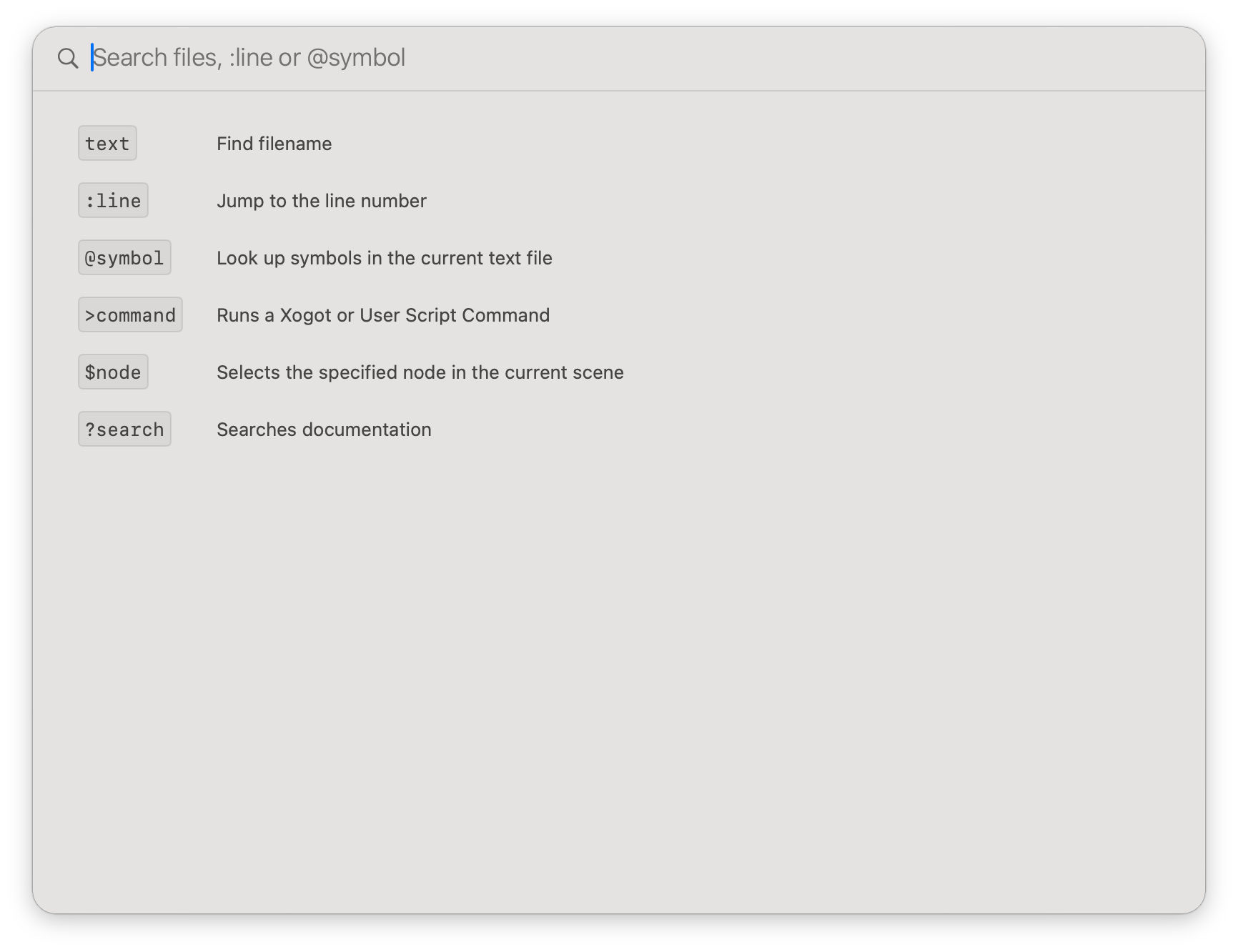
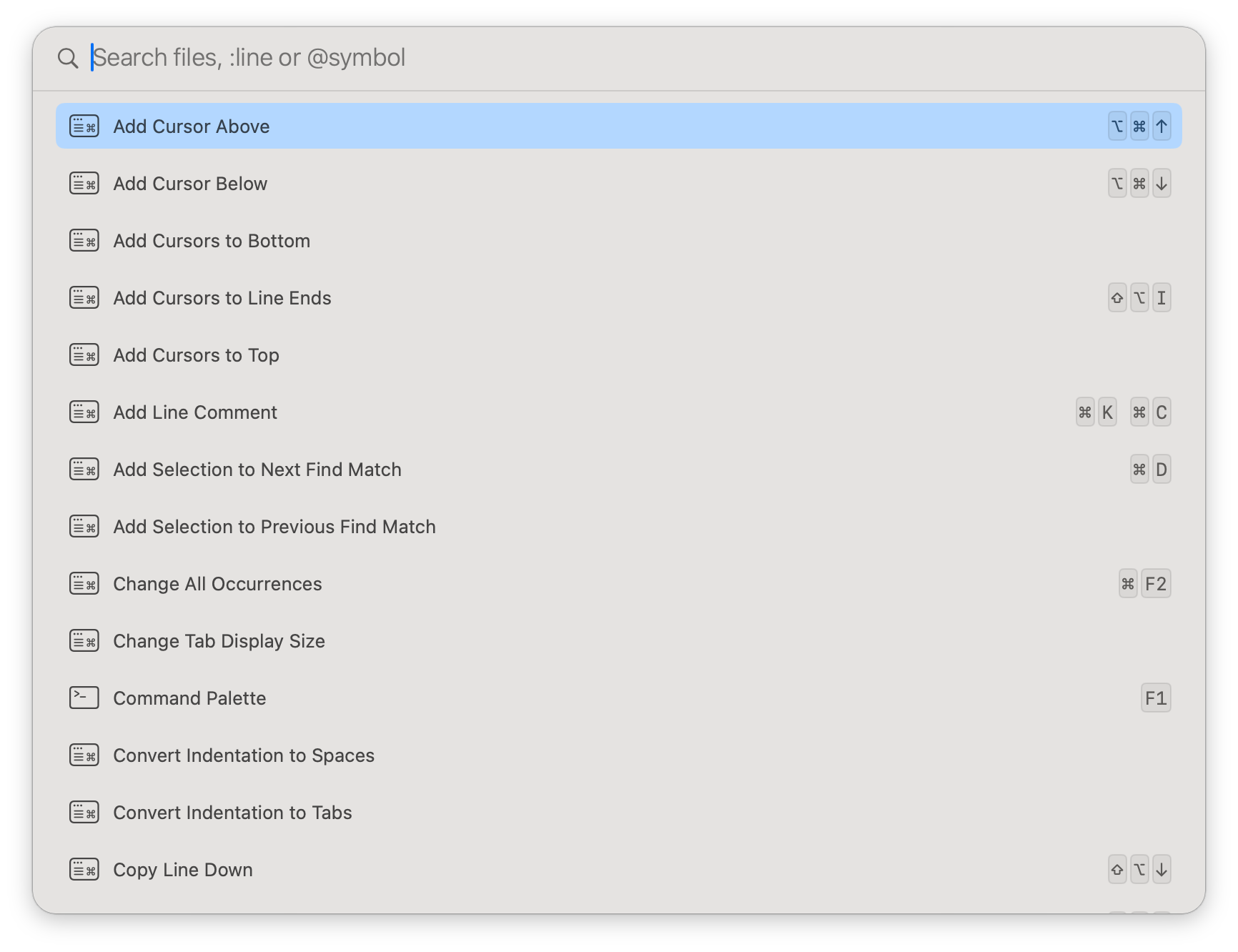
Beta 2 gets a handful of tasteful changes and we now display keyboard shortcuts
That makes it easier to move between editing, search, scripting and editor commands without changing modes.
We now surface the debug control operations on the divider between the scene and the debug/output, and they are available regardless of the tab that you have selected:
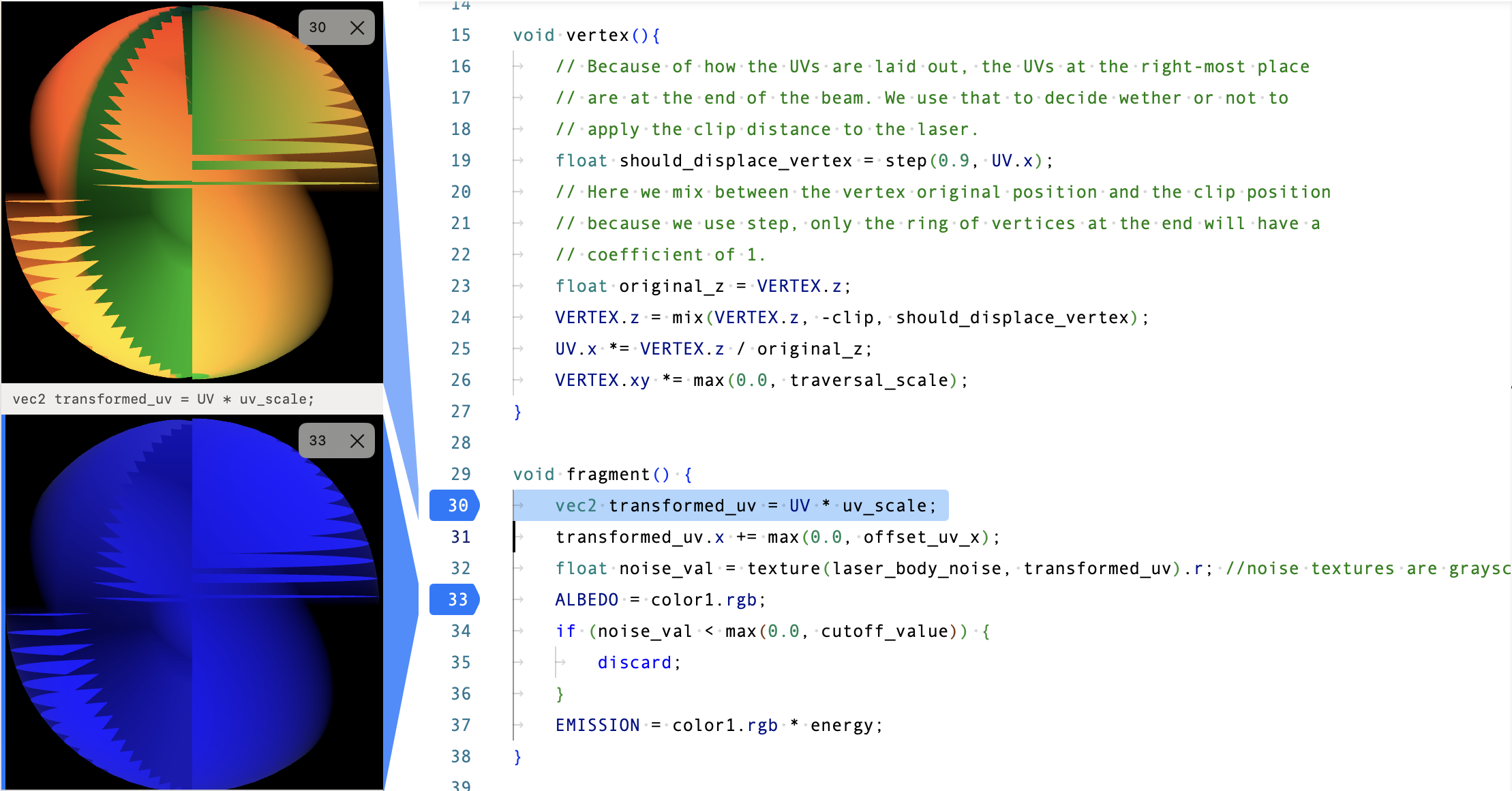
We brought shader previews to the shader editor: for select shader types, when you set a breakpoint in an assignment line, you get a visual preview of what the shader will render:
Running
The Game View and run loop now have better defaults for iteration.
Embedded game playback grabs input properly, fixed-size rendering recenters when it fits, stretch modes can be configured and the GameView toolbar is available even before a game is running. Running without a main scene can now guide the user to define one.
Faster Test Cycles: Another feature we took from Xcode: Run Last Build is available with Control-click on Play or Control-Command-R - avoiding unnecessary build and install work (specially when you are deploying to an iPhone).
In Beta 1 we had two different configurations for running your debug code "Local Editor" (which was embedded) and "Vanilla Mac" (terrible name). We now consider both the same, and you switch them as a setting in the Game View. The "Local Mac" remains as a full bona fide way of running games that require Apple entitlements (like StoreKit)
Configurable Editor Navigation
We did a big usability pass and fine tuned the "Xogot" default navigation scheme to match the interaction modes of Apple's Reality Composer. They should work great with trackpads and mouse - that said, we know that this is a very personal choice, so you can select from other presets like Godot, Maya and even customize the settings to your liking:
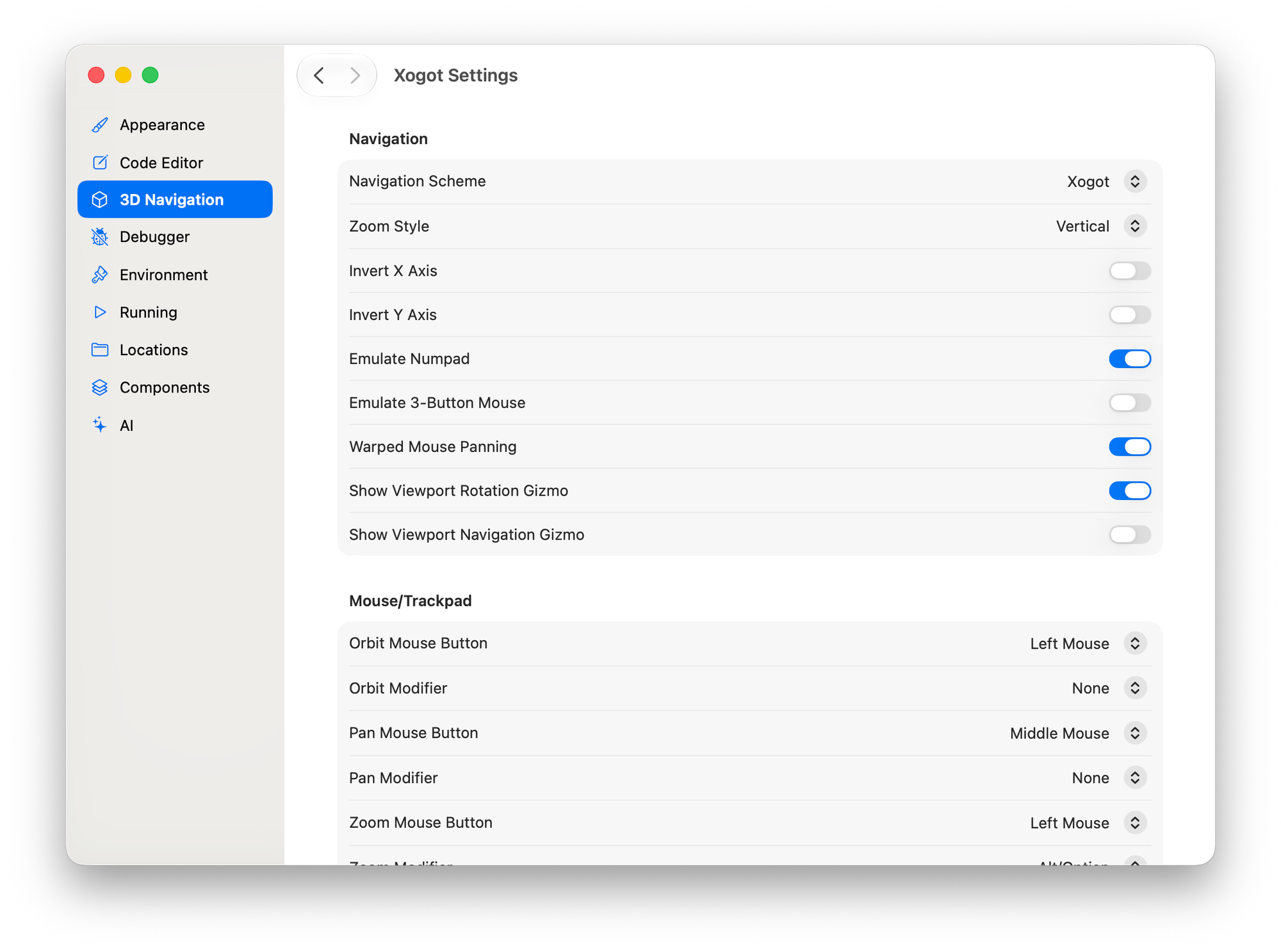
We did this while staying within the confines of what the Godot Editor supports natively - but we think that we will have to introduce some special settings to allow users to more precisely configure the Trackpad vs the mouse support.
Keyboard and pointer behavior were improved too. WASD/QE navigation works with two-finger press behavior and mouse motion is forwarded to editor views so 3D gizmos work correctly.
Scene editing also benefits from focused Mac work around Skeleton3D, TileMap/TileSet editing, camera preview placement in Xogot toolbars and better scene import behavior.
New: 3D Asset Placement
The largest new creative workflow is the built-in Asset Placer. Integrated into the Assets tab, it gives users a direct way to place 3D objects with Free, Grid, Surface, Vertex and Spline placement modes with advanced features for placement.
The new Asset Placer is based on Ultimate Asset Placer by choco-ted, which we licensed and adapted for Xogot.
The placement tools go well beyond dropping a single object into a scene. We added plenty of knobs for designers to control how the assets are placed on the scene.
For dense scenes, MultiMesh placement batches assets into MultiMeshInstance3D for GPU instancing, with generated collision support for those batches.
Auto-collision on placement can create Static, Rigid, Character, or Area bodies with Trimesh, Convex, Box, Sphere, or Capsule shapes.
Check out our Xogot Asset Placer video for a quick overview of how to use the new features in the Assets tab, or check out our Asset Placer documentation.
Asset Browser Improvements
The Asset Browser now does more work for the user.
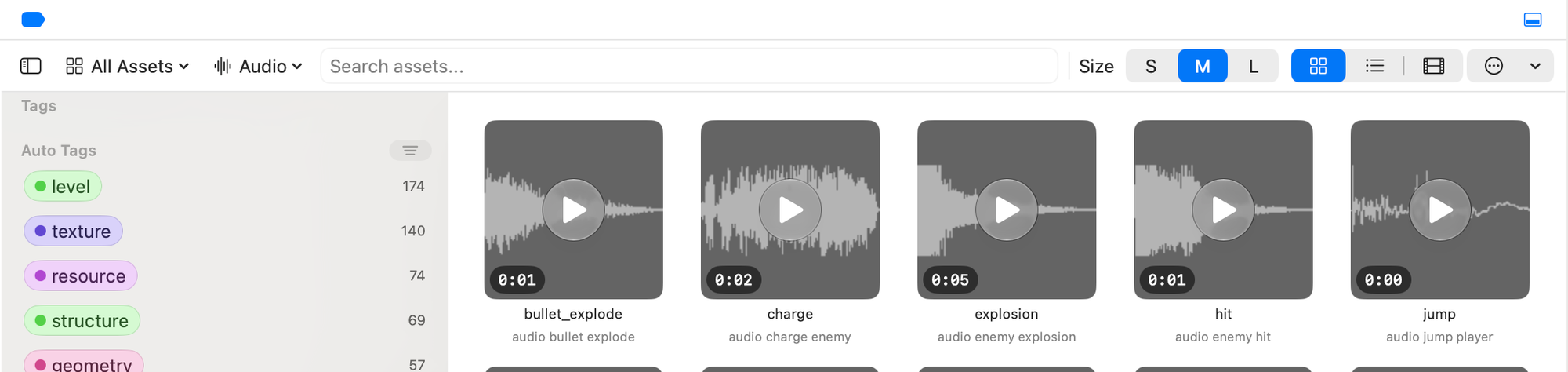
Audio assets: they can now be previewed and the audio runtime is shown:
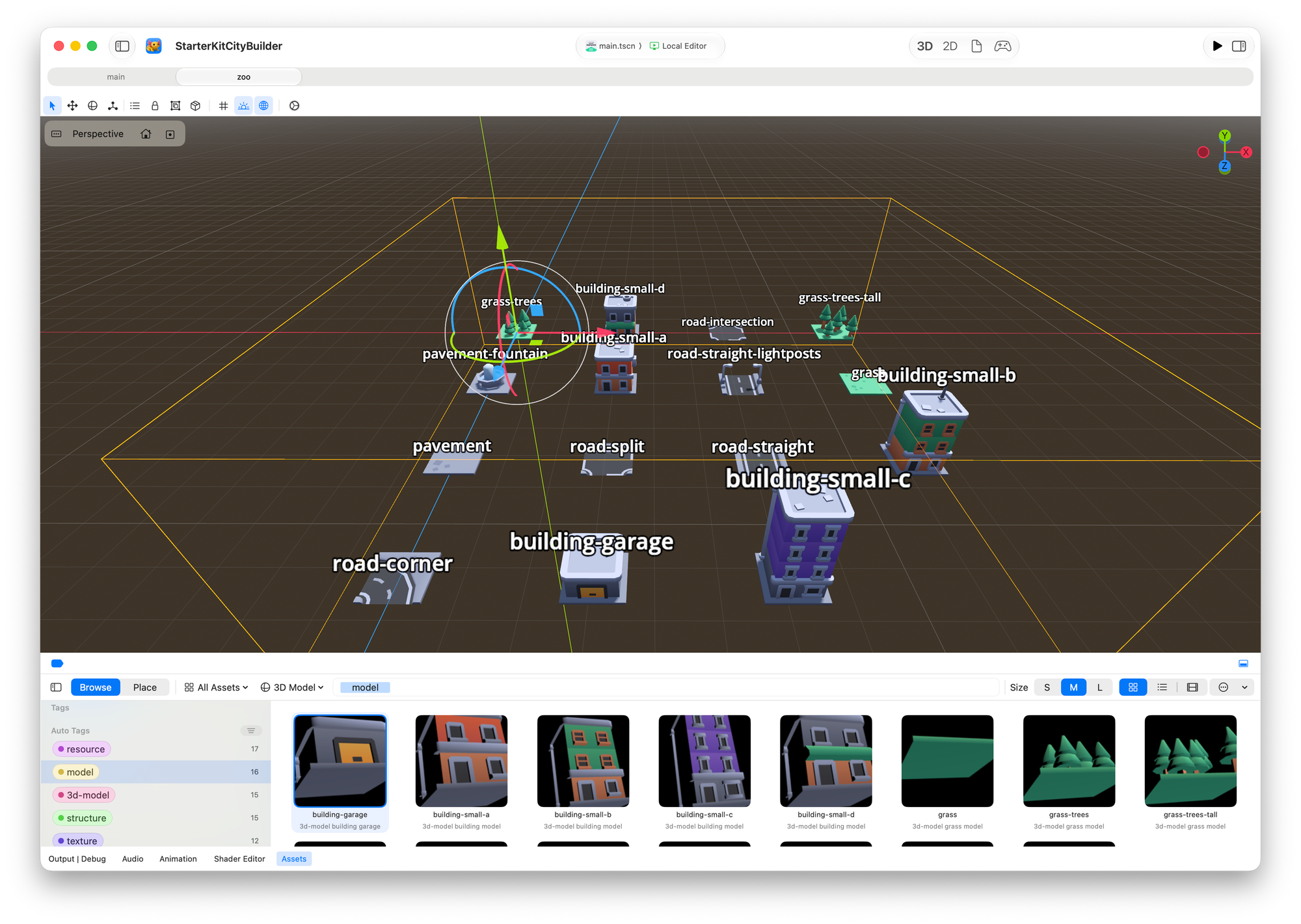
3D Models, Scenes: we now automatically generate the thumbnails for 3D assets and scenes, which we were scared of doing before - what if it is too taxing? So the new asset browser has a throttling system, along with a switch to disable it entirely if it turns out too expensive.
Navigation: Asset Browser navigation is also more capable, with keyboard support, shift-click and command-click selection and better touch/navigation behavior.
Asset Zoos: When we introduced the asset browser, we knew that while it is practical to find assets, designers routinely use asset zoos. We have updated our Asset Browser to let you create asset zoos from the browser. You can create from your search results, or from your selection and have them inserted in your current scene for expediency, or on a dedicated scene that you can easily share. Let the record show that Robin-Yann made it clear that no asset browser is complete without an Asset Zoo.
Importer Improvements
Faster Imports. This version enabled the multi-threaded importer for faster project imports. And to keep track of what is going on, we surfaced the loading progress indicator which previously was mostly dormant.
Redesigned Audio Import Settings. The Beta 1 was just a SwiftUI port of the Godot version, and it neither looked good on the Mac (it was better on iPad) - but most importantly, it is a dialog that packs a lot of punch if you know what you are doing, but makes it otherwise very hard to use.
To redesign this dialog, we looked at both what the implementation did, and what the intended use was - the Godot API is suited to import chunks of audio, and potentially have it repeat from a given point - and this can be achieved either by an absolute timestamp, or a beat (computed in beats per minute).
So we surfaced those elements, and even added a convenient button "tap" so you can jam and get the right tempo. Honestly, this felt a lot better on the iPad when you could tap on the screen than on the Mac where you are clicking on a button. But taking the feature away felt like a crime.
While we have ideas on how to improve it further, this is one of those places where what we can do is limited by compatibility with Godot - which we value over anything else.
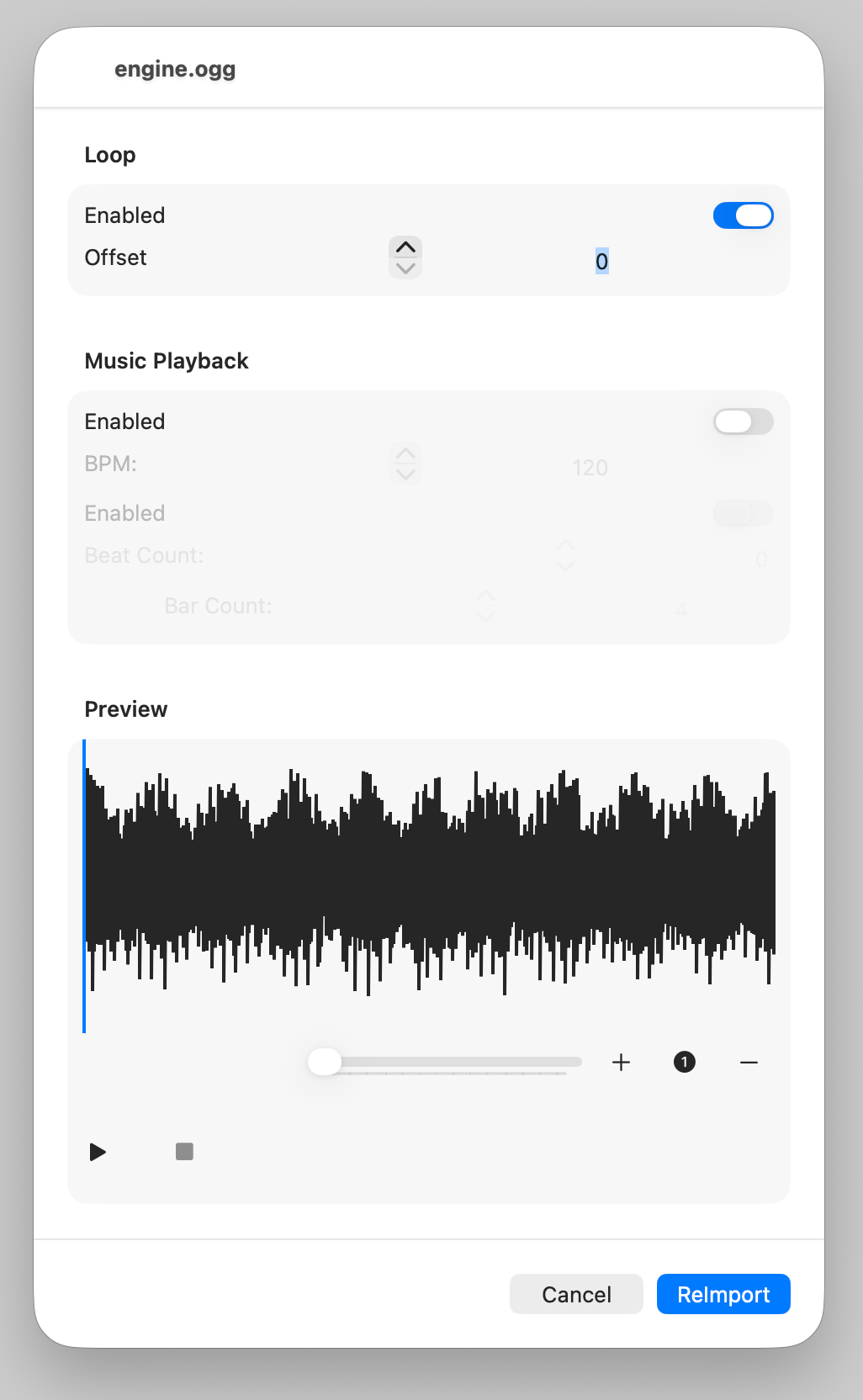
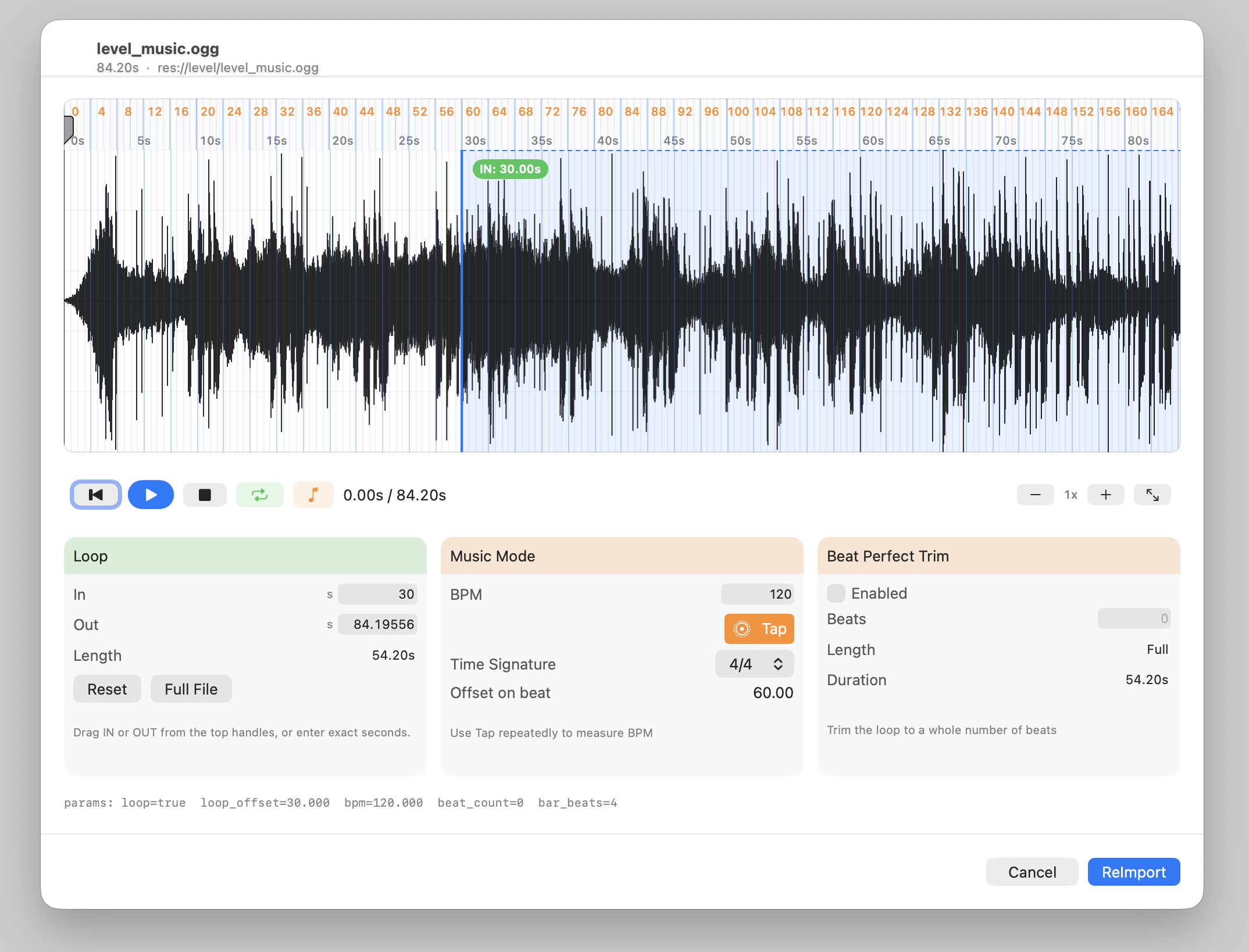
Beta 1 importer: it was a SwiftUI port of the Godot editor. The Beta 2 redesign is rooted in grasping what developers need to do.
The Advanced Font Importer also got an upgrade. In Beta 1, we were using Godot's built-in system, but it did not feel at home with the rest of Xogot, it consumed too much screen space, and we felt it was difficult to use. So we took this chance to redesign and rewrite in SwiftUI as well:
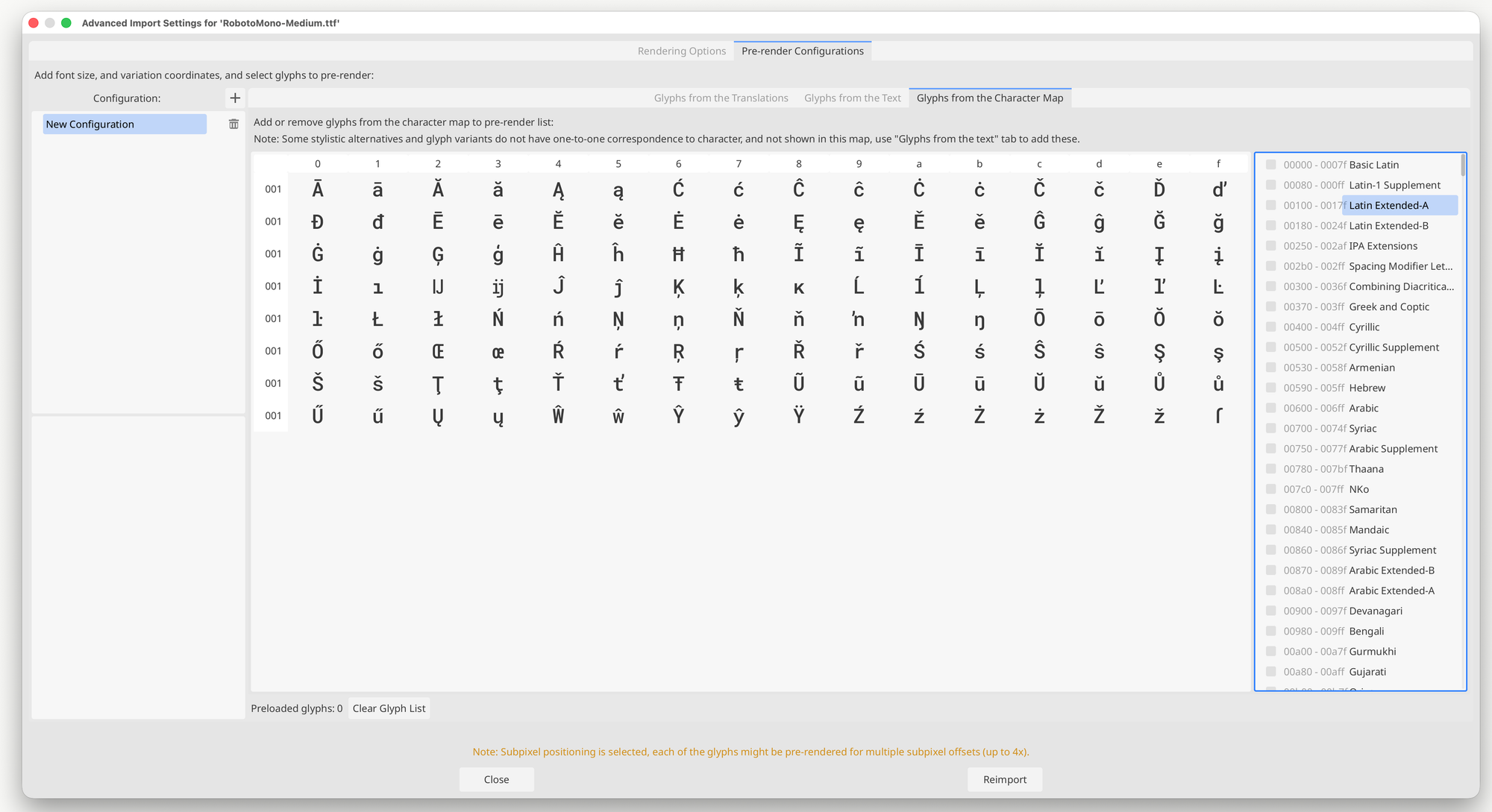
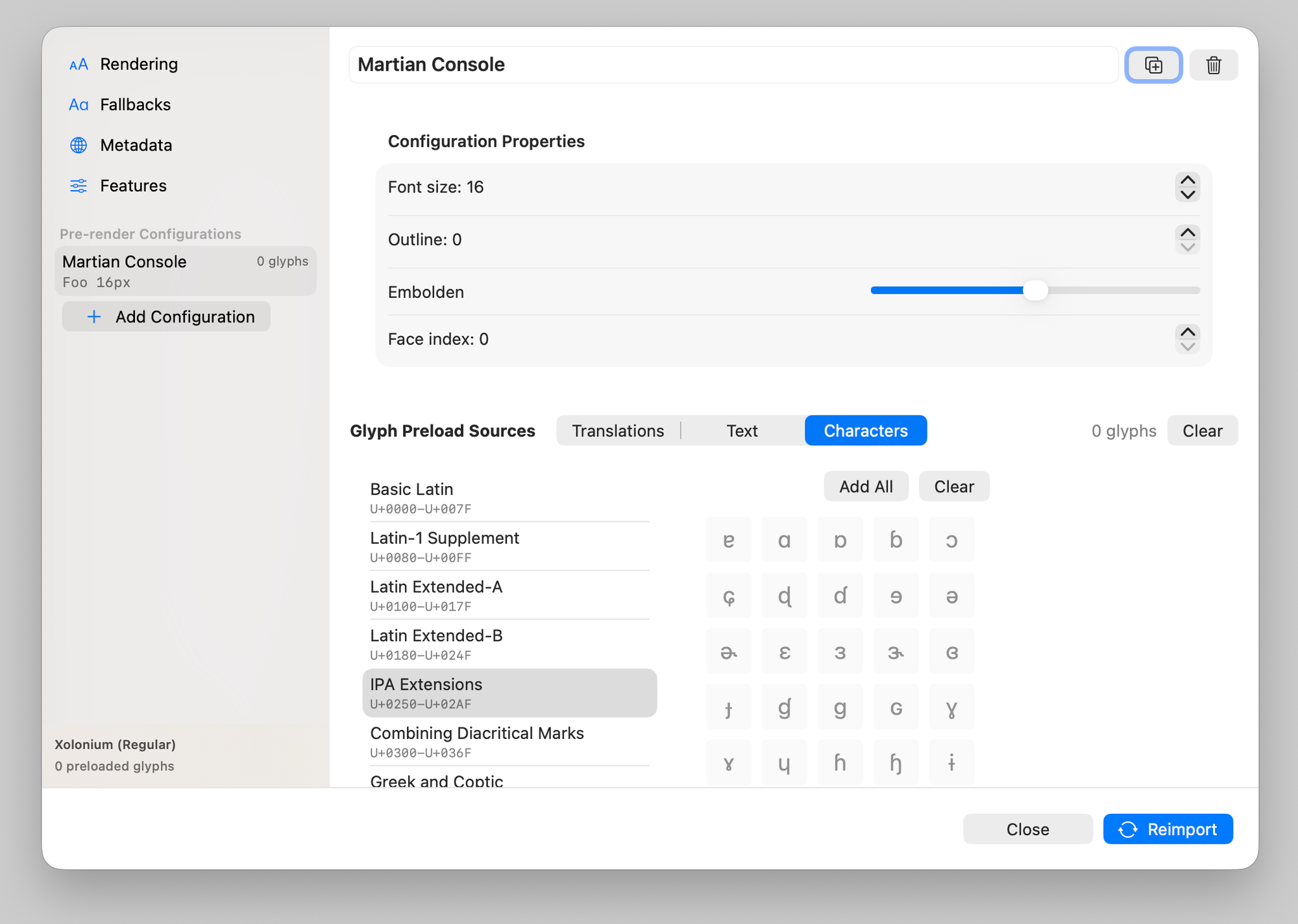
Advanced Font Importer Settings in Beta 1 vs Beta 2.
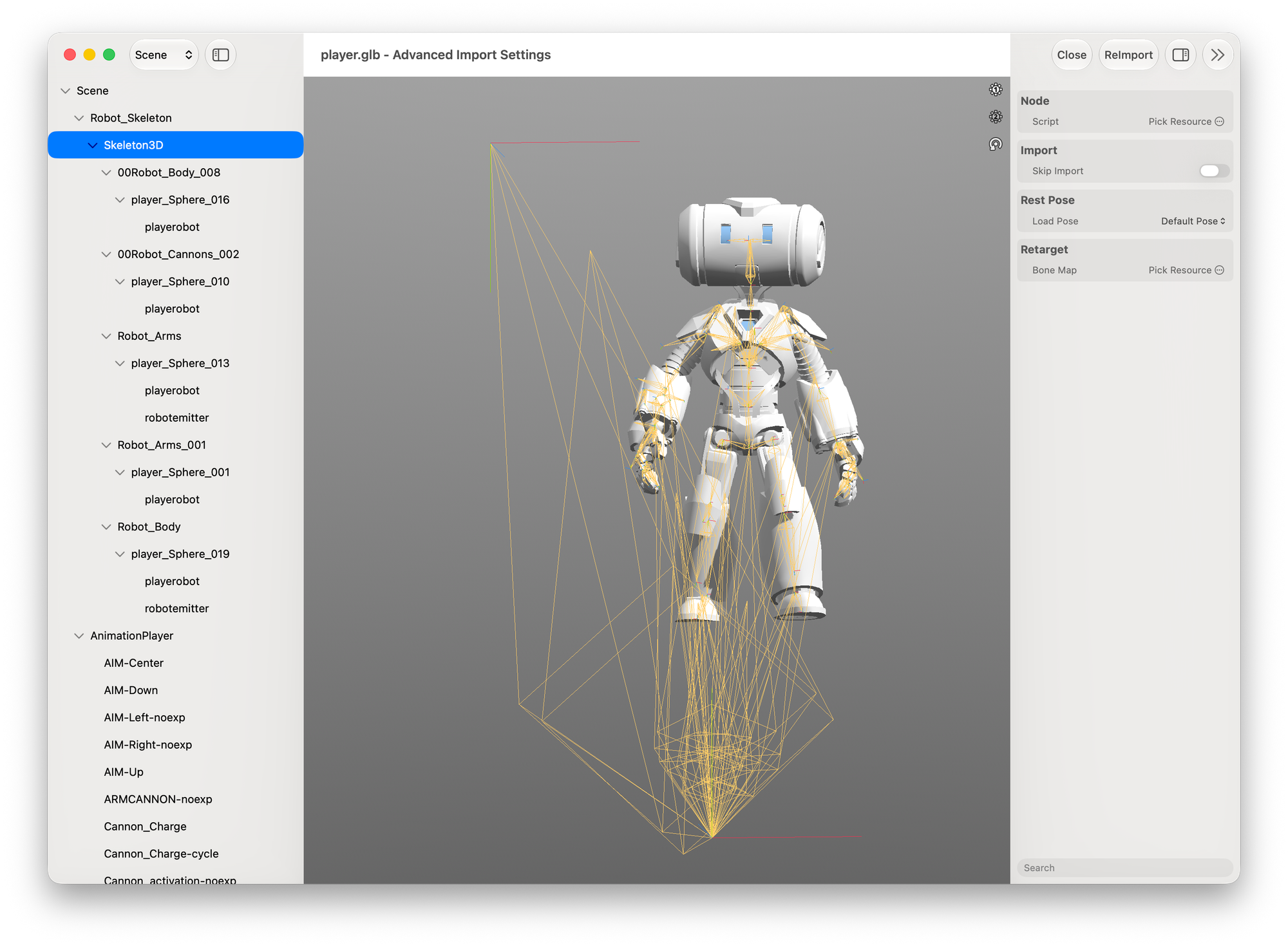
Scene import gained several parity improvements with Godot, including better Skeleton bone previews, zoom input, live loop-mode editing, timer lifecycle fixes, MultiMesh handling, material extract behavior and Mac rotation fixes. Visually, it looks very similar to Beta 1:
And we complemented the importer with some features we had not surfaced on Beta 1: gLTF Export and MeshLibrary export are now available.
Animation, GridMap and Specialized Native Tools
Several specialized Godot editors now have more native Xogot support.
AnimationPlayer got various improvements: the animation time can be resized visually, we added support for AnimationMarkers that were missing in Beta 1 and added support for multiple key selection and clearer labels.
AnimationTree got various small reliability improvements:
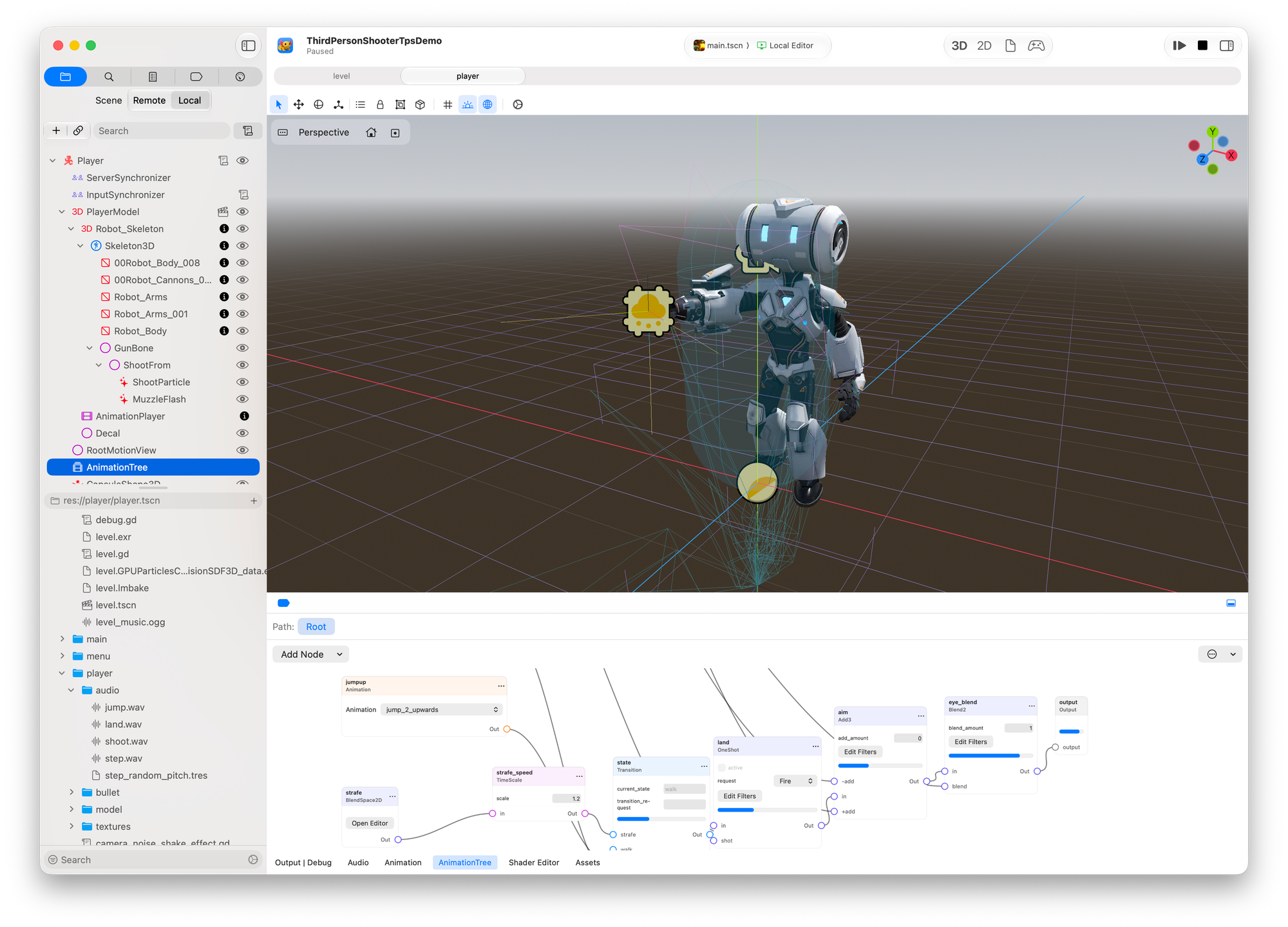
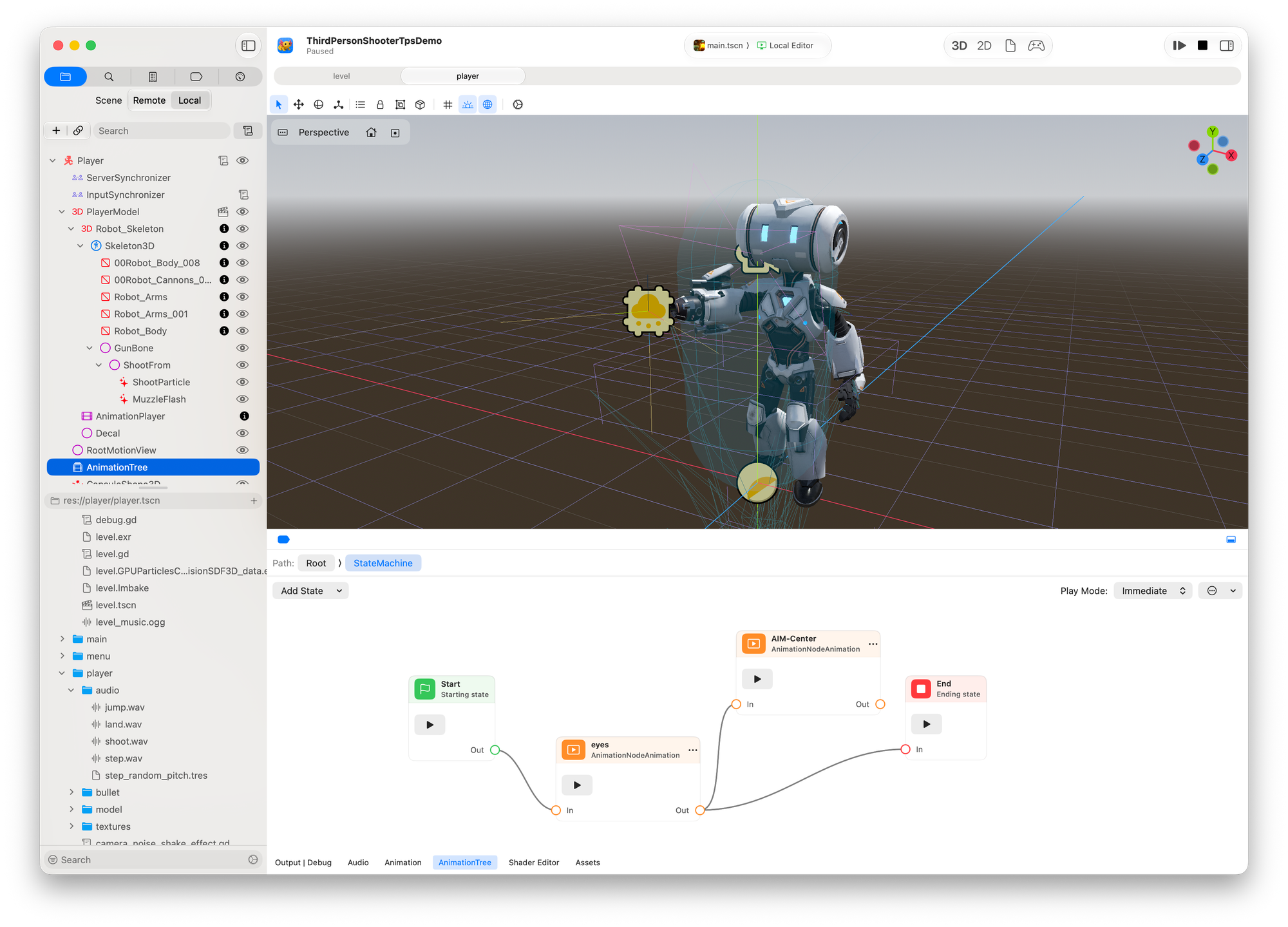
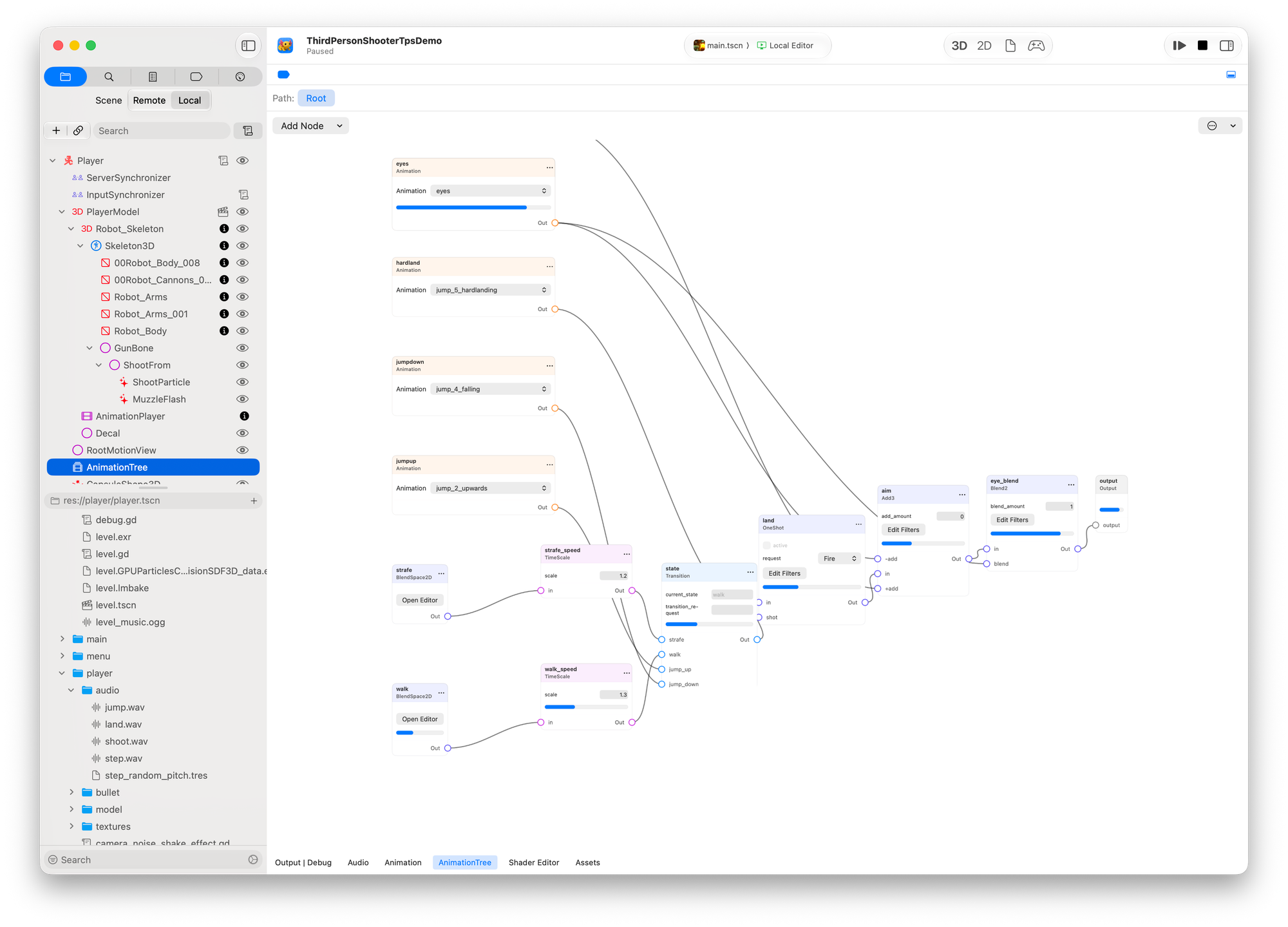
AnimationTree in Beta 2
Now, while I was very proud of this AnimationTree UI - there are areas where I have struggled about the specific UI that I want for it. The first editor I think is completely fine, but the second one has in/out nodes that are there for practical purposes, but is ugly.
Luckily for you (and for my own fragile ego), Apple showed the new features in Reality Composer 3 at WWDC and they have some very borrowable ideas for what to do with those in/out nodes. So expect this view to be RealityComposificated.
Godot GridMap
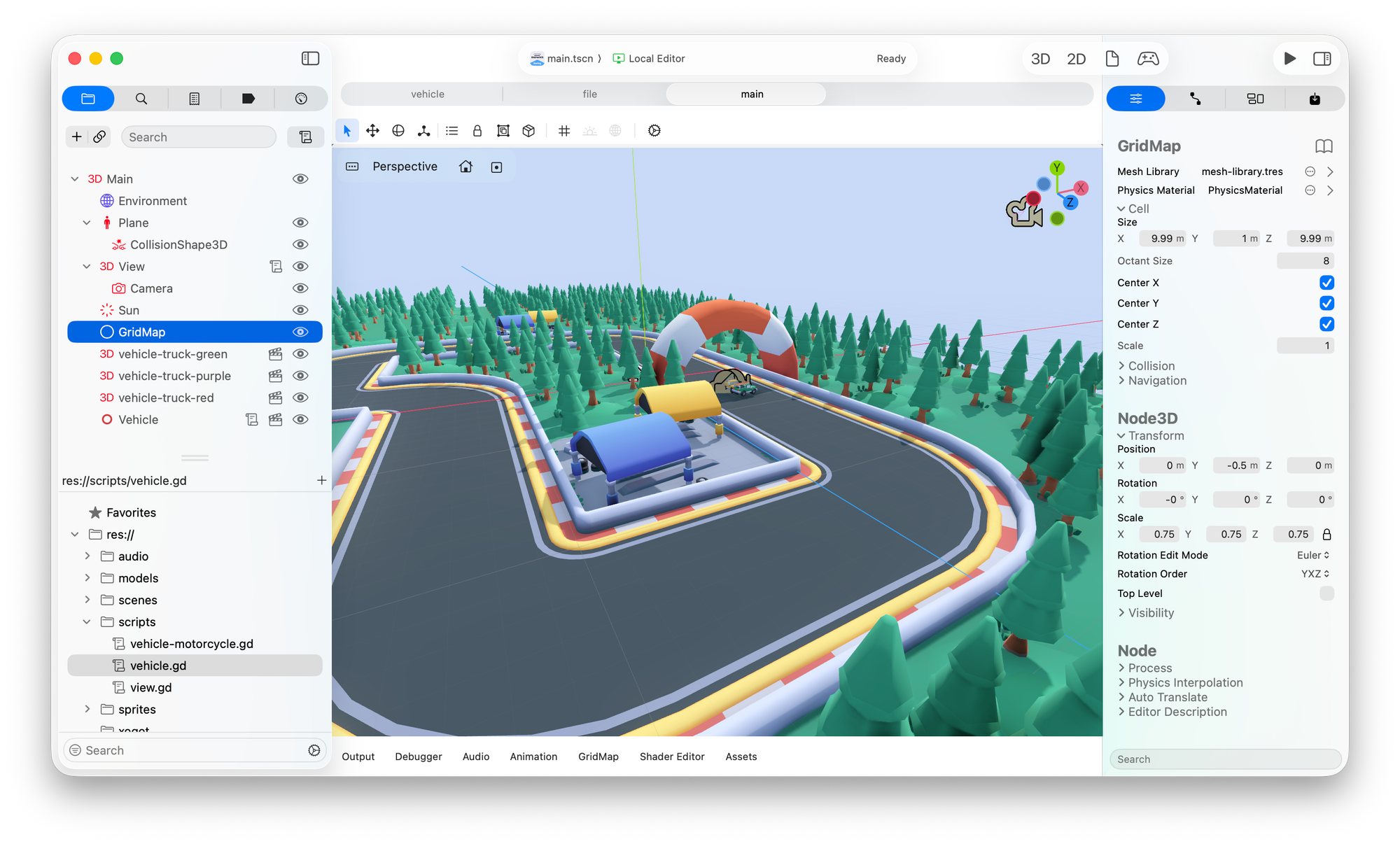
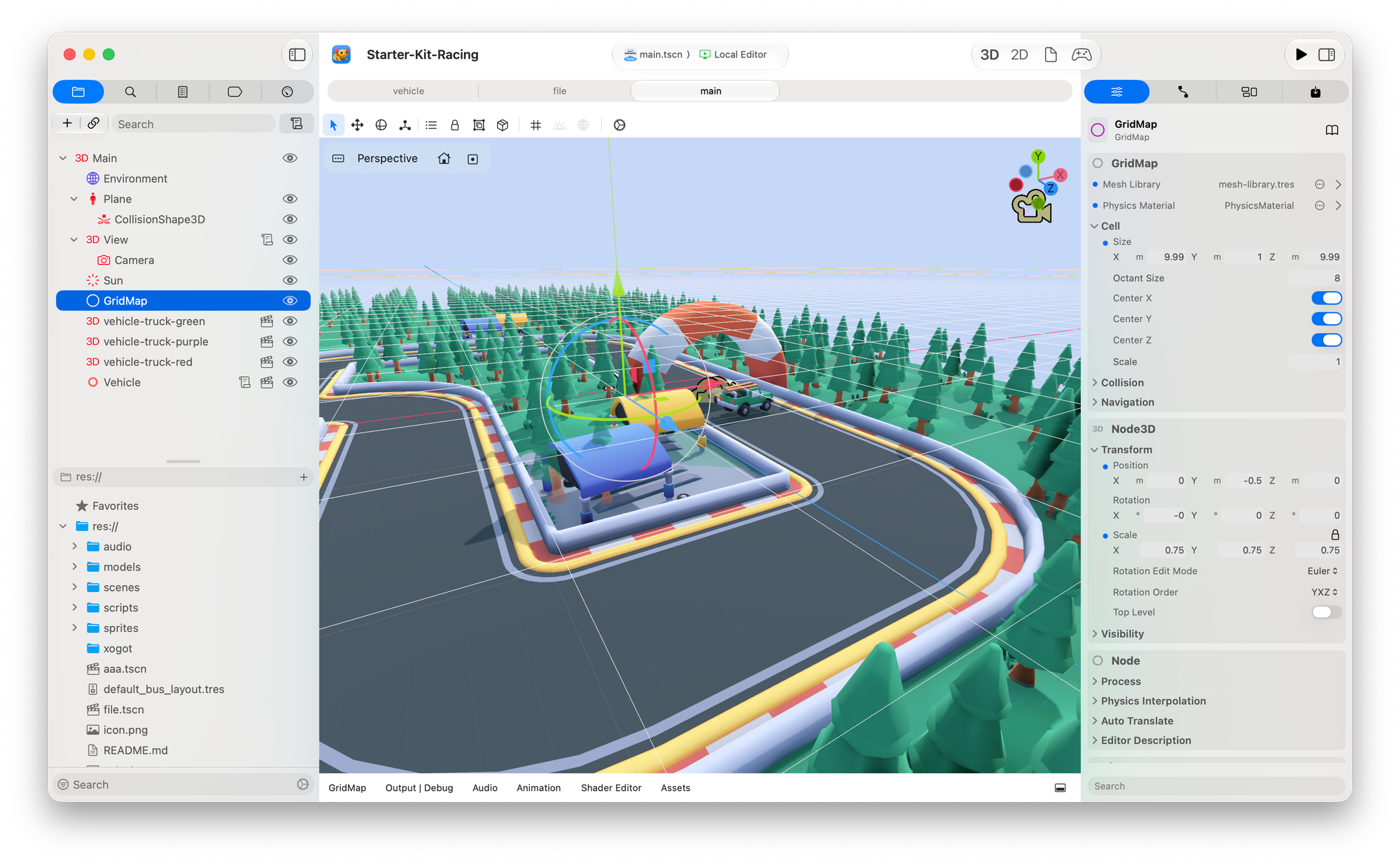
While we think that our asset placer is the best thing since sliced bread, Godot offers a special GridMap that can work with MeshLibraries. We also rewrote this one in SwiftUI, to a large extent for touch input on the iPad, but works great on the Mac as well:
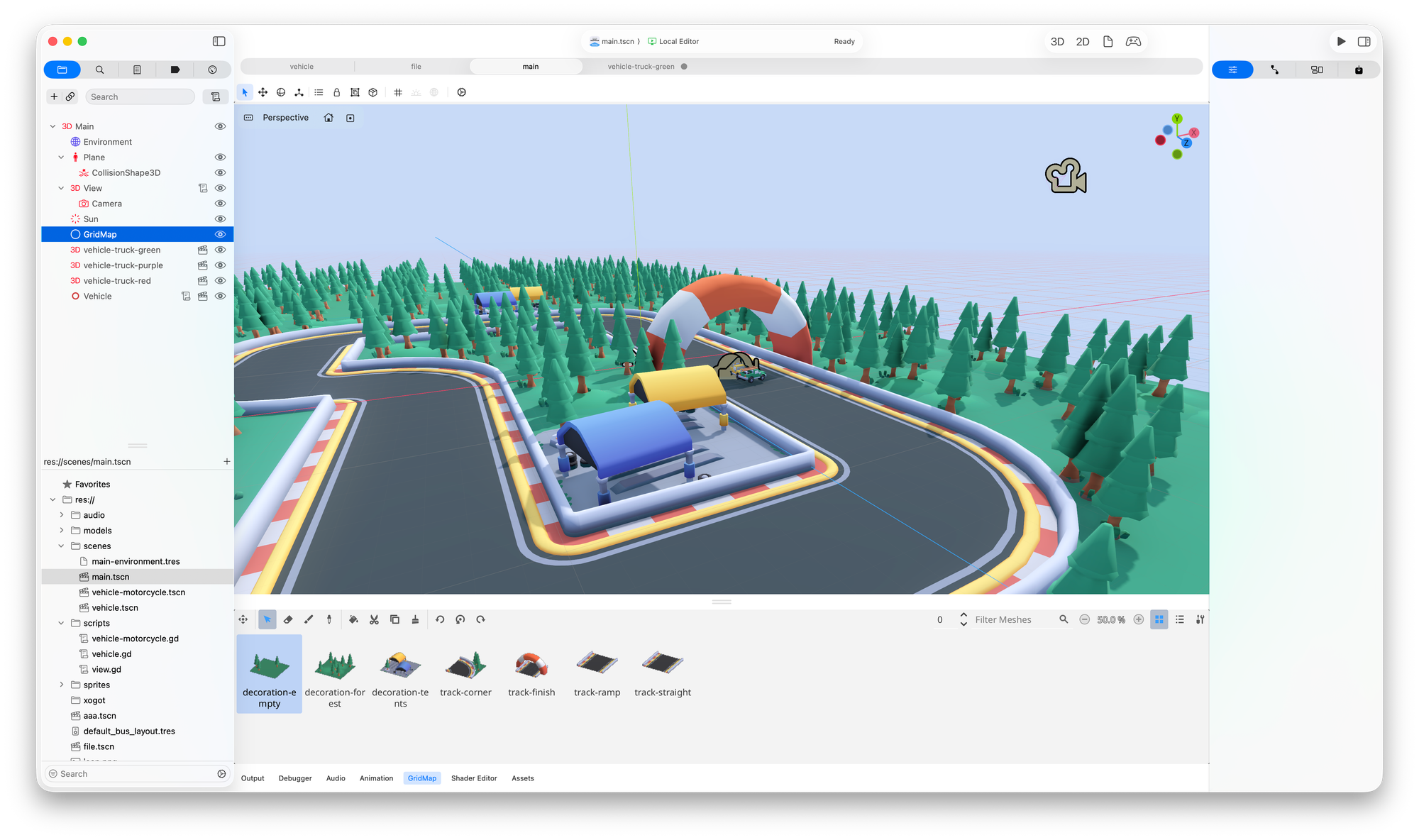
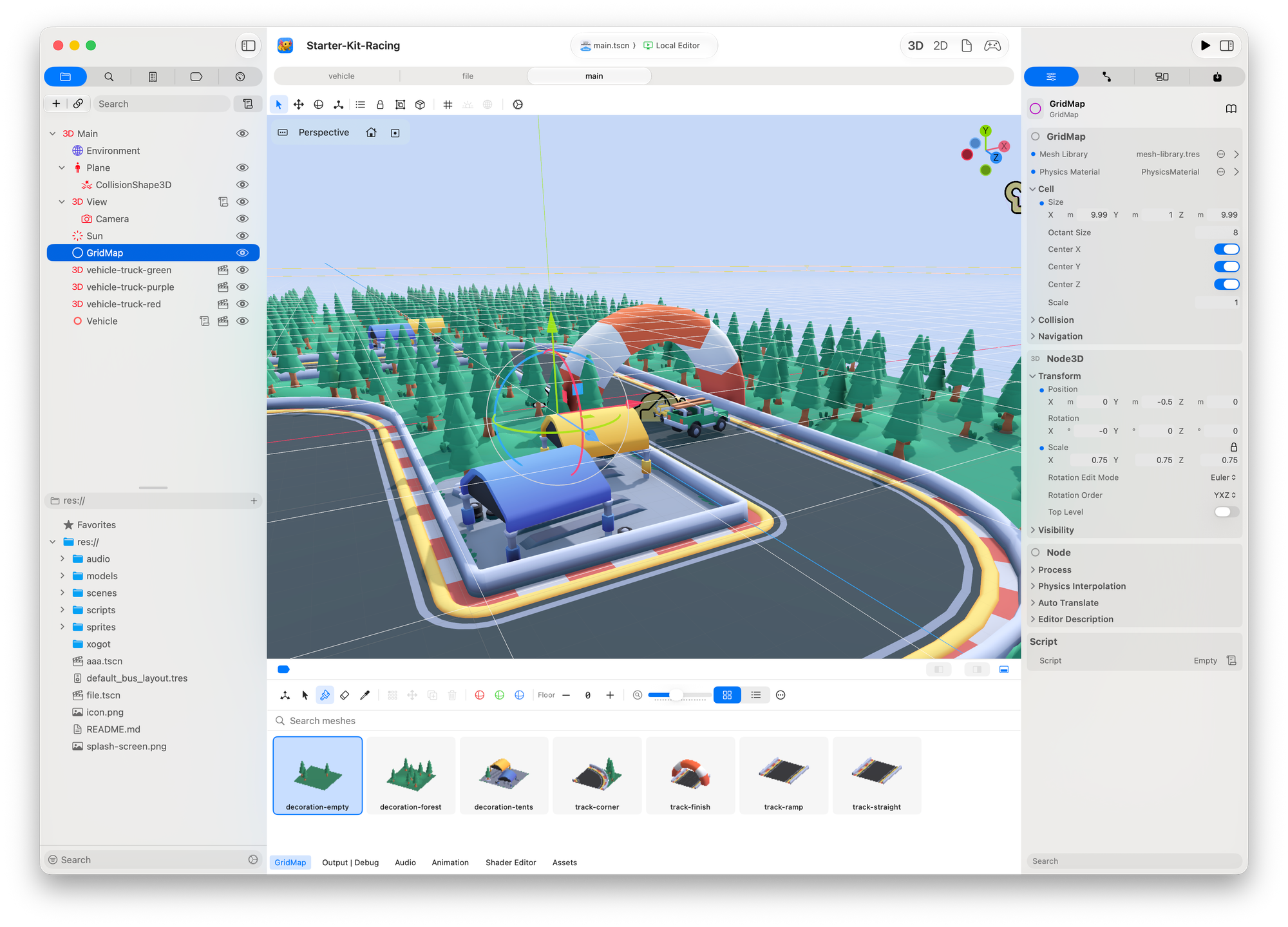
GridMap in Beta 1 and Beta 2
MultiMeshInstance3D Godot has a node that offers a mechanism to populate a MultiMeshInstance3D - it is one of those UIs that was still based on the Godot UI.
The existing dialog was hard to use and did not encourage experimentation - every attempt to use the dialog would reset and you would need to start from zero. So when we rewrote this dialog in SwiftUI, we invited experimentation with a live preview, so you can tune the results (you can see a video of the equivalent plugin running on iPad.)
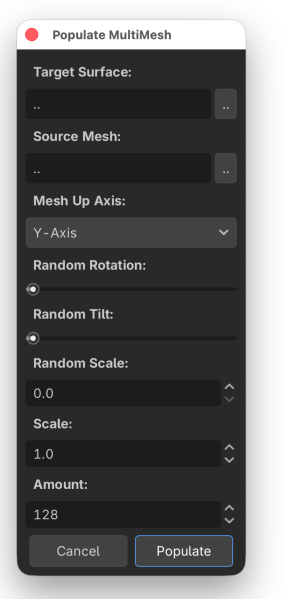
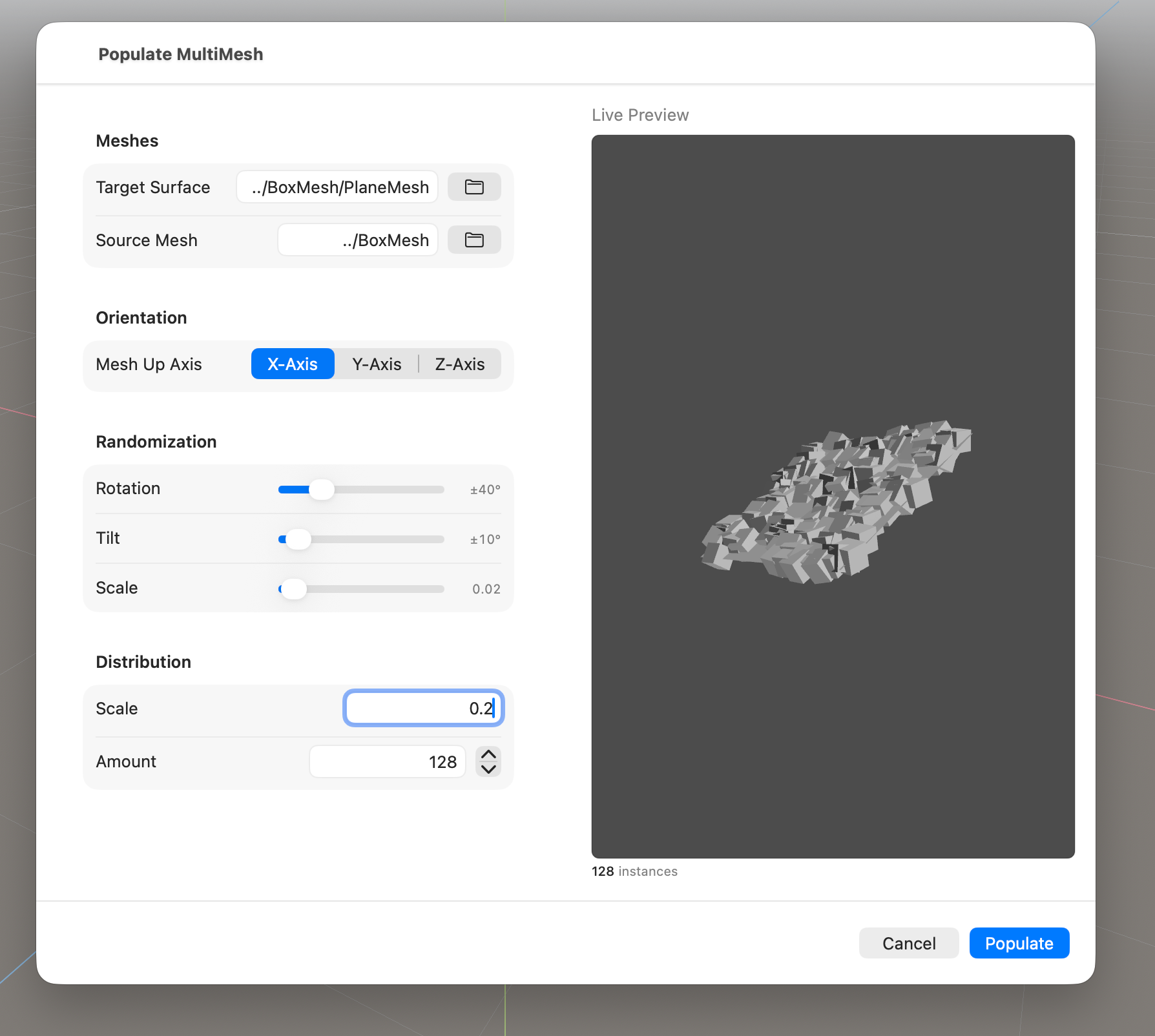
Populate MultiMeshInstance3D in Beta 1 vs Beta 2
Better Plugin and Extension Compatibility
Xogot now works better with real Godot projects that depend on plugins, extensions and custom tooling. Plugin-registered toolbar docks are supported, editor insets allow floating toolbars to avoid plugin surfaces and plugins that open windows instead of dialogs are supported, enabling add-ons such as Terrain3D.
Because Xogot was a SwiftGodot-based app, games that used SwiftGodot-based extensions conflicted with the original beta. Oops.
We fixed this, and now they work as you expect them to.
Xogot will now automatically detect when you download quarantined binaries, and will offer to remove the quarantine bit for you.
More Power for Automation and AI-Assisted Editing
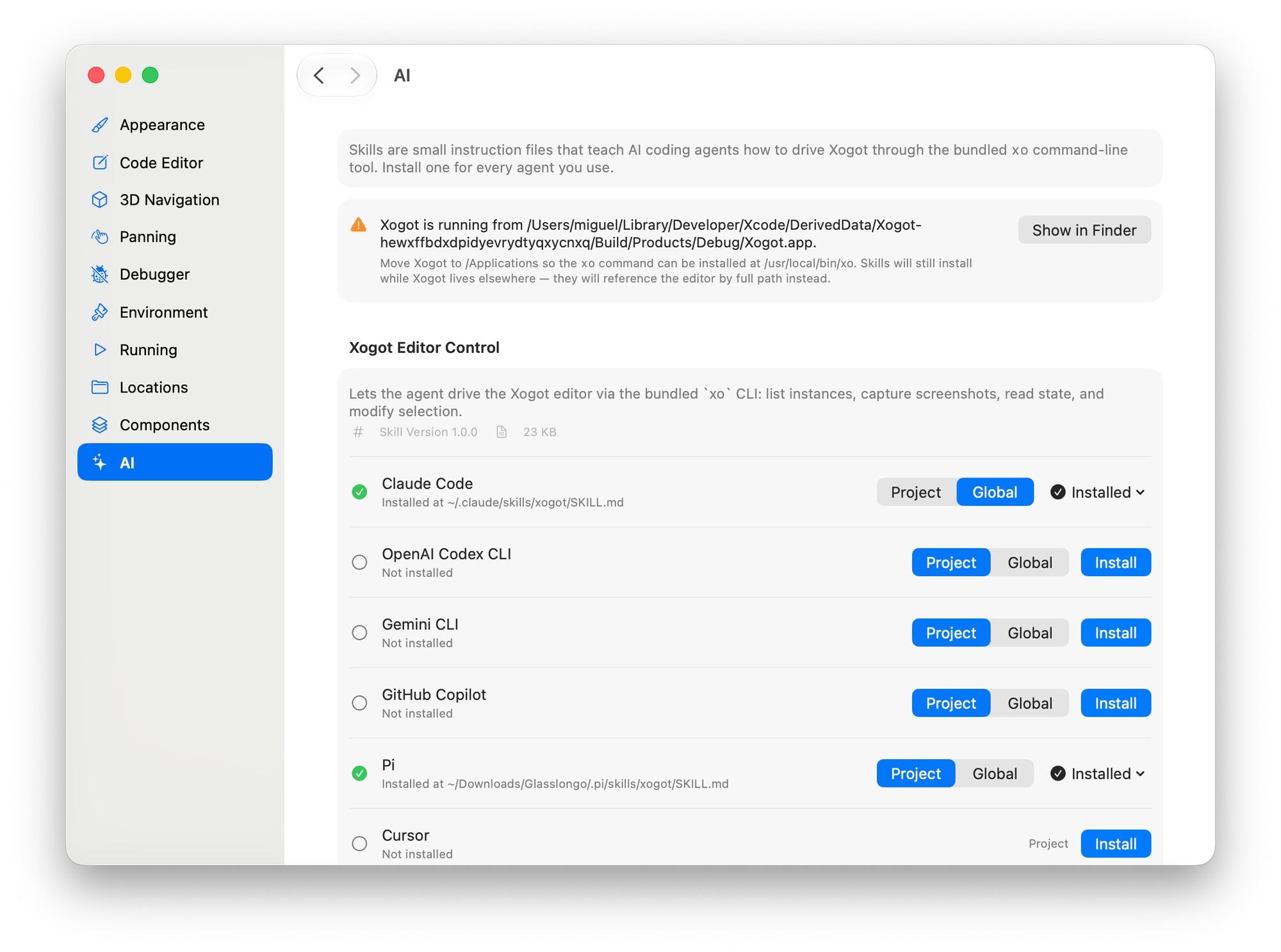
For Xogot on Mac, we wanted to make the editor controllable from the command line. We have experimented with MCP-based approaches, and we may return to that later, but for the Mac beta we introduced a more direct tool: xo.
xo is a command-line interface for driving Xogot. In Beta 2, it can perform a growing set of editor operations, including scene deletion and renaming, node array append/remove, resource create/update/delete, project autoloads, project shader globals, and debugger control.
This opens the door to command-line control, external tools, scripting, and AI-assisted editing. We will cover xo in more depth soon, but you can try it now from the Settings/AI tab:
Performance
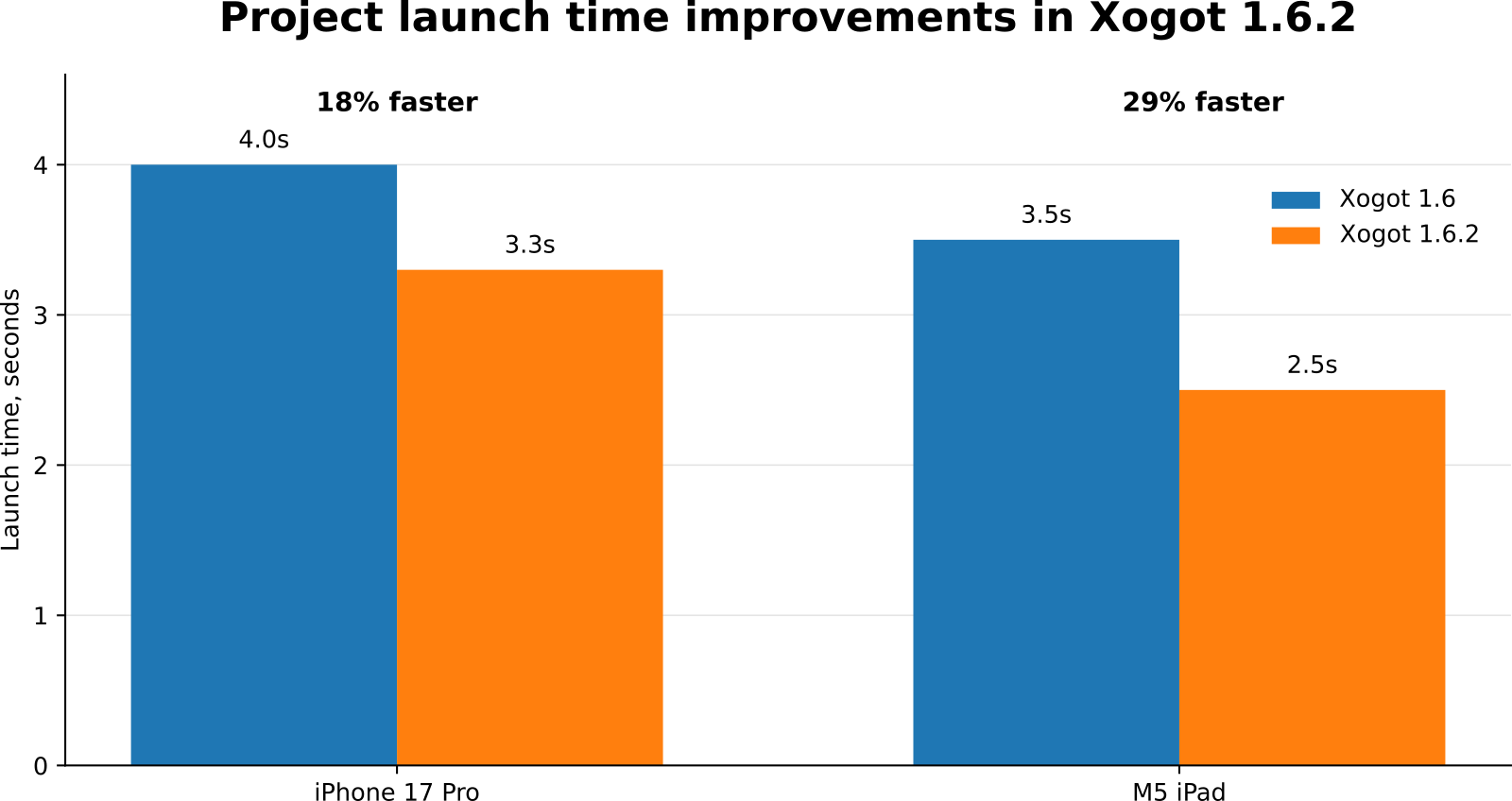
We spent countless hours with Instruments tuning individual elements of the UI that did not feel great. We had accumulated many slow code paths over time, but also, some of them were not immediately noticeable on the iPad with a touch-centric interface - but they are easier to spot if you try to navigate items by keeping the cursor keys pressed - so we went hunting for those performance problems across the board.
Many of the performance improvements that we brought in Xogot 1.6.2 for the iPad are also present in Beta 2. The savings on my Mac are similar to those on the iPhone, so I decided not to redo this chart, because the measurements were identical by 0.02 seconds:
You can download Xogot for Mac Beta 2 today:
Download Xogot for Mac Beta 2