

Introducing the Asset Browser: Finding Your Stuff, Faster
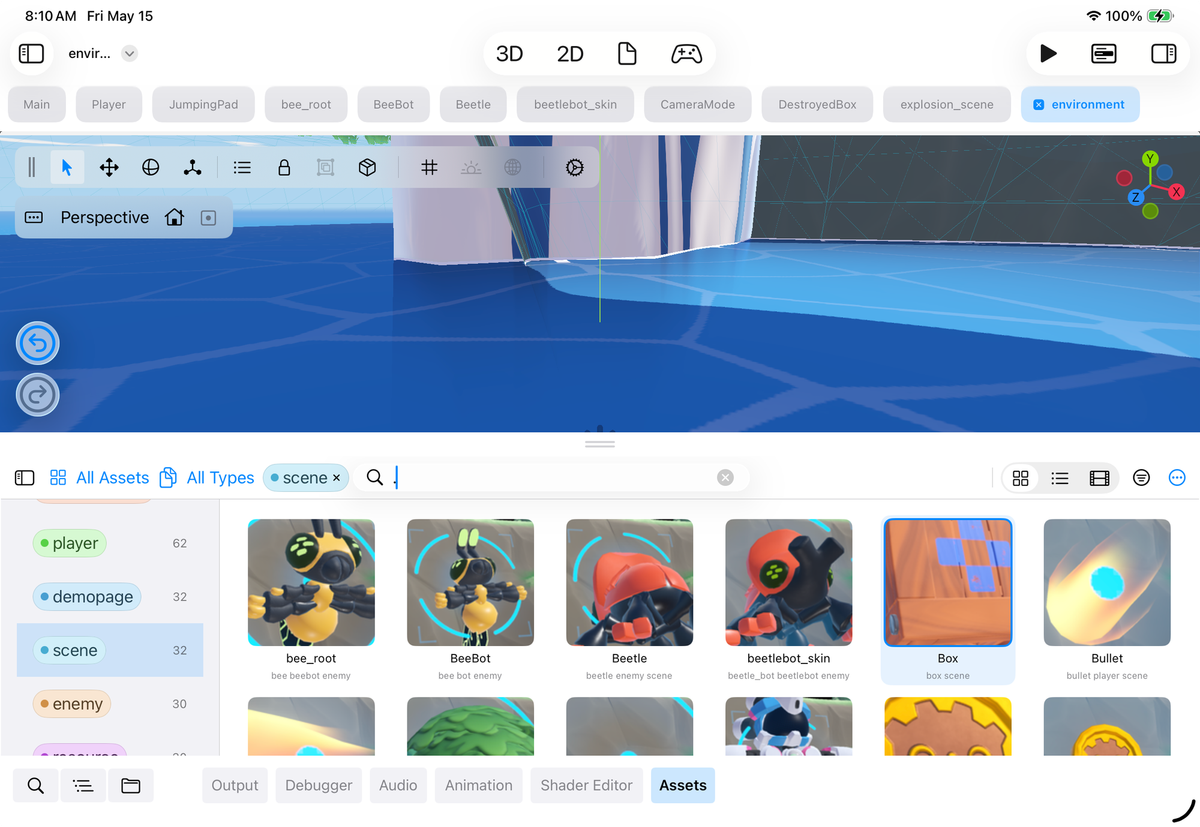
One of the things that was cumbersome when using Xogot on the iPad was finding and placing your assets on the screen. The way that this works in Godot is that you find your image, 3D model and you drag and drop it into the editor. Or you can drop them into special places in the inspector.
This idiom is acceptable on the desktop where you can afford more information density, but it does not work great on the iPad -or the iPhone- where we found ourselves struggling with the space:
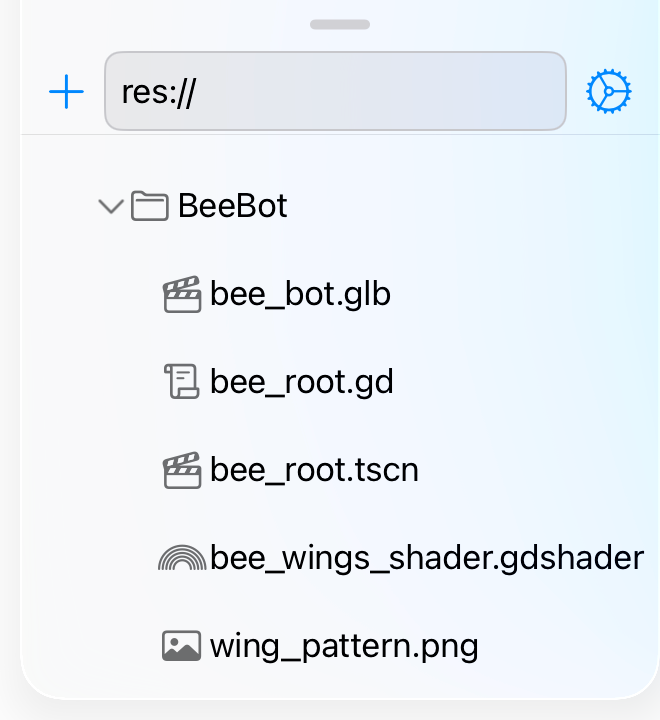
This worked for quick tasks, but it can get tedious and repetitive to find the right asset and drag it into the editor surface, the scene tree or the inspector. We deployed a few band-aids, like a toggle button to quickly expand the height to twice the size. We also have a search bar so you can type and find the right file.
This process was tolerable, but it leaves much to be desired, and I definitely did not want people to walk out with the impression that our motto was: "When life gives you pigs, apply lipstick."
It did feel like we needed a dedicated panel for this.
What Others are Doing
Turns out that we were not alone. The Godot world has various plugins to simplify 2D and 3D asset placement, and along the way, they tend to implement variations of asset browsing. We came across Emil Dobetsberger's thesis "An Analysis of Level Design Tools and Development of a Godot 4 Plugin" where he surveyed 33 level designers across Unity, Unreal, Godot, and other engines, and the finding that jumped out at us was this: in Godot specifically, "Finding the right asset" got a median rating of 2 out of 5 from designers working on 3D levels.
Nearly half rated it the lowest possible score.
Godot's FileSystem dock shows thumbnails for 2D textures by default, but 3D models show up as generic icons unless you go out of your way to configure previews. So browsing a 3D project means reading filenames and either memorizing what each one looks like, or dragging them into the scene to find out. As Dobetsberger's thesis put it, this is exactly the kind of task that breaks flow when you do it a hundred times a day.
Emil's thesis went on to build a Godot 4 plugin around asset libraries, scattering, and snapping — and in user tests, it cut scene-building time by roughly 30%.
What we built
We wanted a solution that was both built into Xogot and was touch friendly and could be deeply integrated into the editor, so we started with the first part: an asset-browser which we shipped recently:
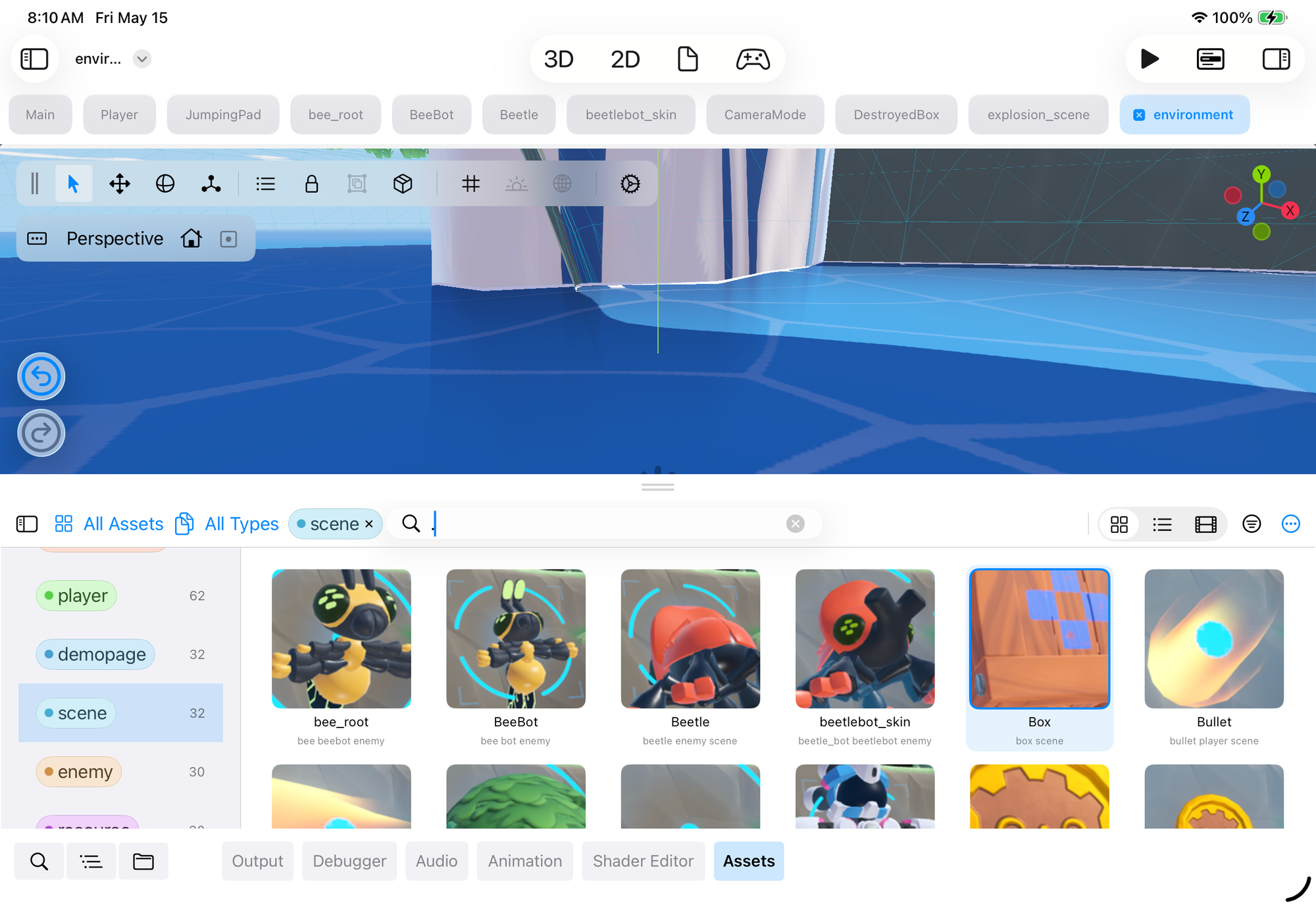
This dedicated pad is available on every project, and it displays all of the resources from your project, Scenes, 3D models, Textures, Fonts, Textures and Audio. And we augmented the pad with different visualization systems to help you find what you need.
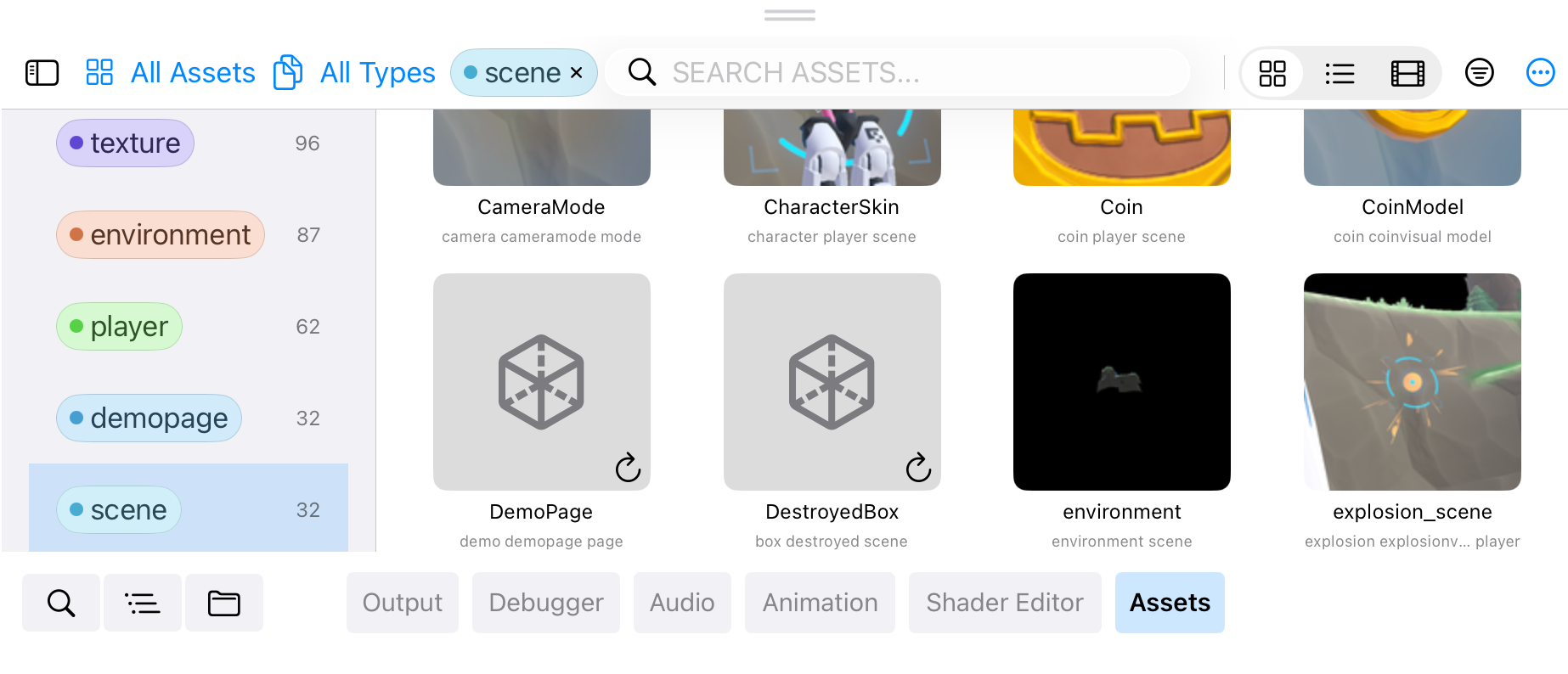
3D asset previews can be expensive to generate, so if you have not saved a file, the assets will appear in gray, with a button to trigger the refresh:
Tags without the tagging
We loved the idea of a tag-based asset library. Unity has labels, Unreal has collections, Blender has its asset browser catalogs, and they all make finding things in a big project dramatically easier. The thesis we read described tagging as powerful but noted that "tagging each asset with all fitting tags can be difficult". To say the least! Tags are great once you have them. Sitting down to tag 800 props you imported from an asset pack is not great. And nobody was going to do it.
We decided to try an experiment: what if we could auto-tag assets based on their filename. So we implemented in Xogot an auto-tagger based on filenames, folder structure, file type and metadata. For example, a file called sparks.png in res://Player/BulletVisuals/ would get the following auto-tags: bulletvisual, player, spark and texture.
We tried this with various projects, and it was surprisingly useful. We added one last touch:
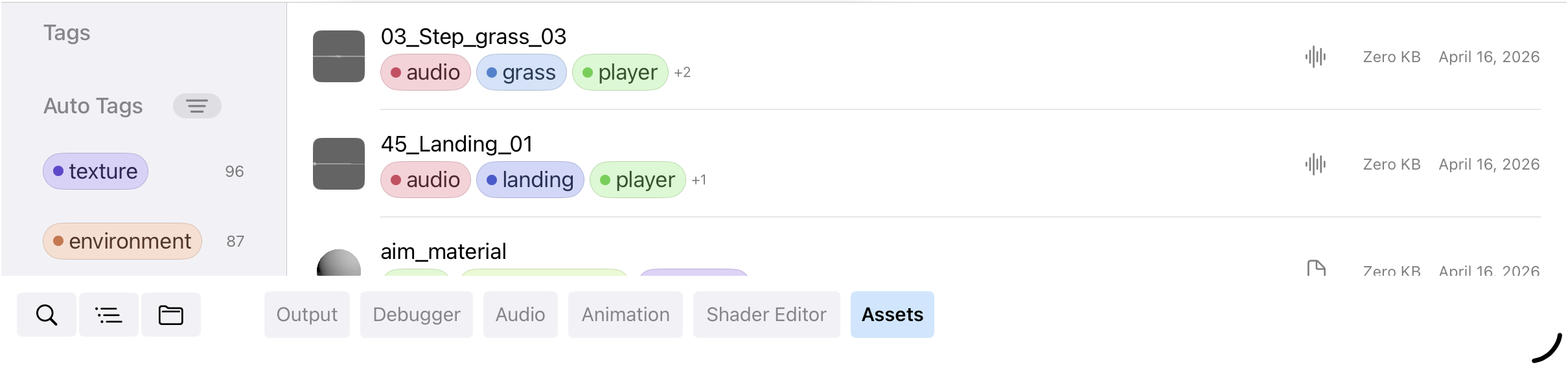
When we create the assets we automatically compute a color based on the tag name, so that they can be easier to visualize and requires less manual intervention to be useful.
Search across everything
Once everything is tagged, search becomes the natural way to navigate. Type wood and you see every wooden asset in the project. Type tile floor and you narrow it to floor tiles. The query runs across names, tags, paths, and metadata, so you don't have to remember whether you called it floor_wood_01 or wood_floor_a — both show up.
Tags in the inspector
Automatic tags are a great starting point, but users will want to set their own tags, and among the more disciplined among you, completely opt out of our automatic tag system. So we surfaced the tags on the inspector, which on a rainy day, happens to bring a splash of joy to the inspector:
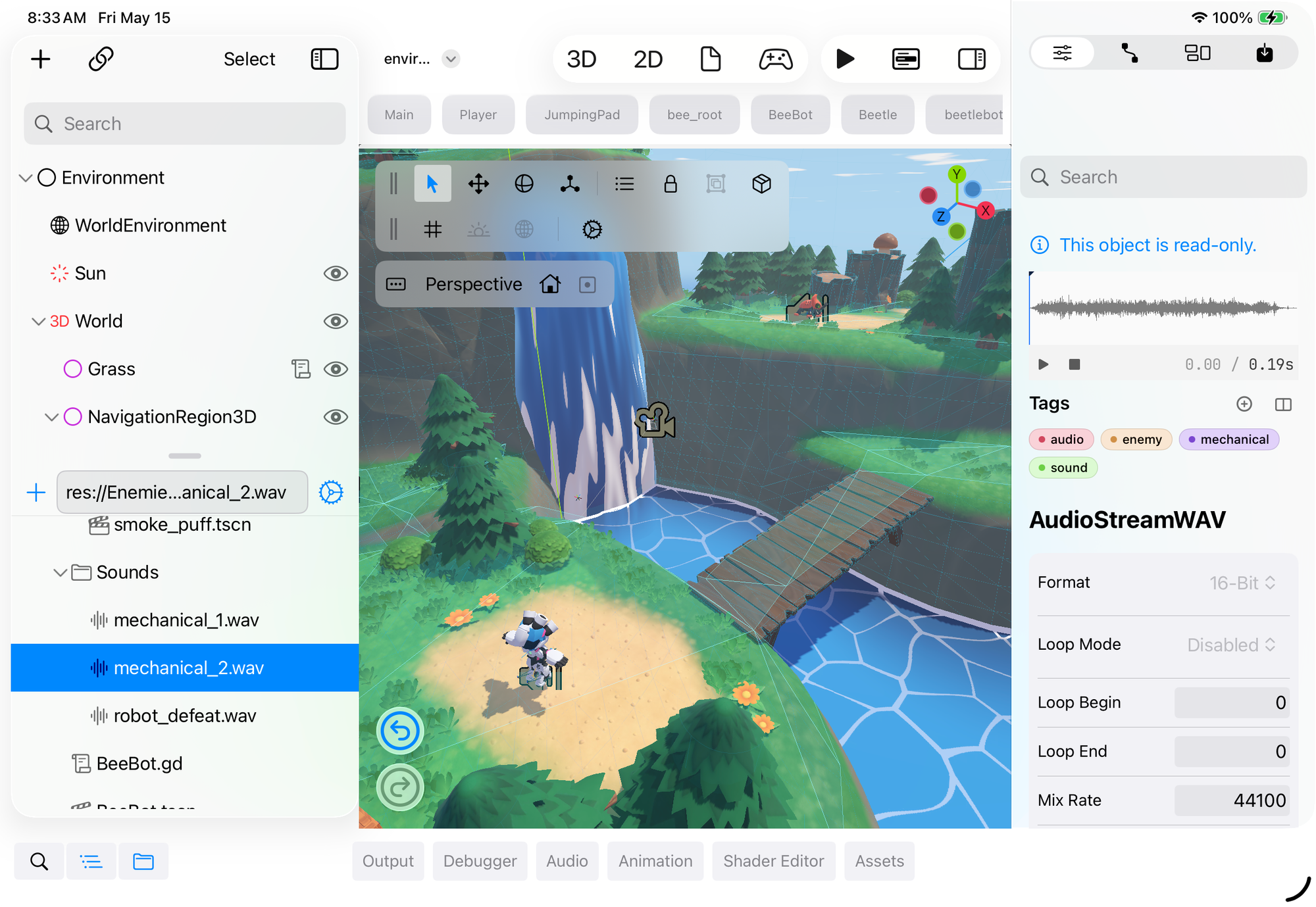
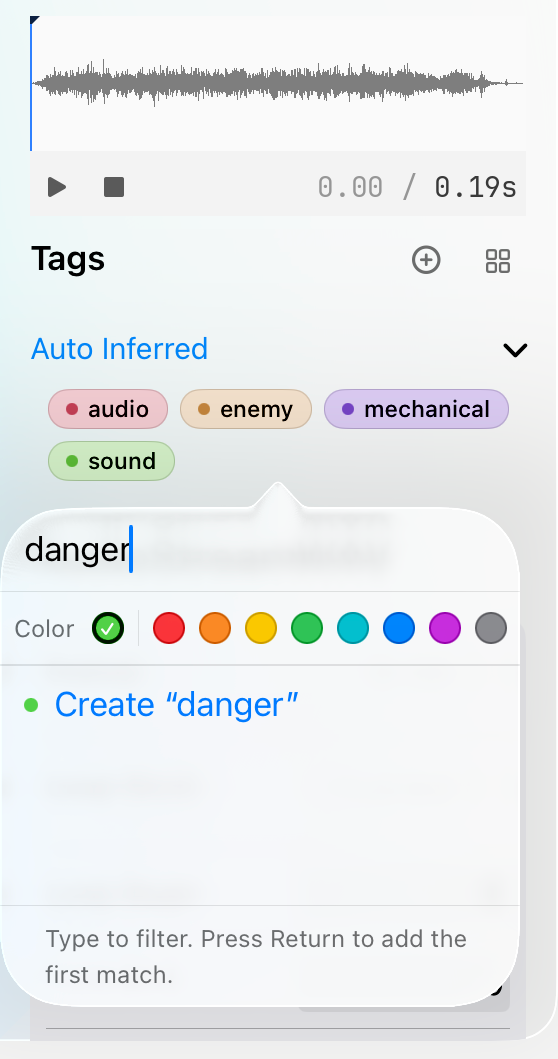
If you tap on the plus icon in the Inspector, you can update the tags directly from there:
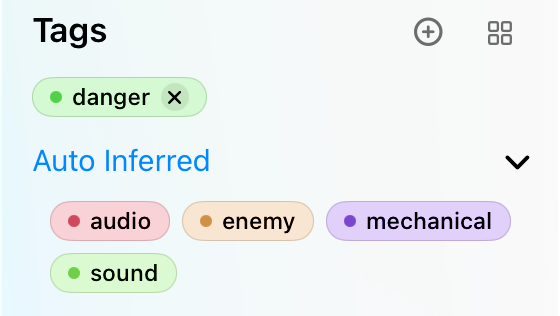
And if you want to remove a tag, you can do so by tapping on the convenient "X" affordance:
What's next
This is the first piece of a larger effort. Dobetsberger's thesis covered a lot of ground we found ourselves nodding along to, such as placement tools, greyboxing tools, smarter snapping and tap-and-drag tiling. Those are all on our list. The Asset Browser is the first part of the puzzle, once you can find the right asset in two seconds, every downstream tool that places, snaps or tiles assets gets better too.
Take the asset browser for a spin in our latest release, and share your experience with us!