

Xogot Modeler
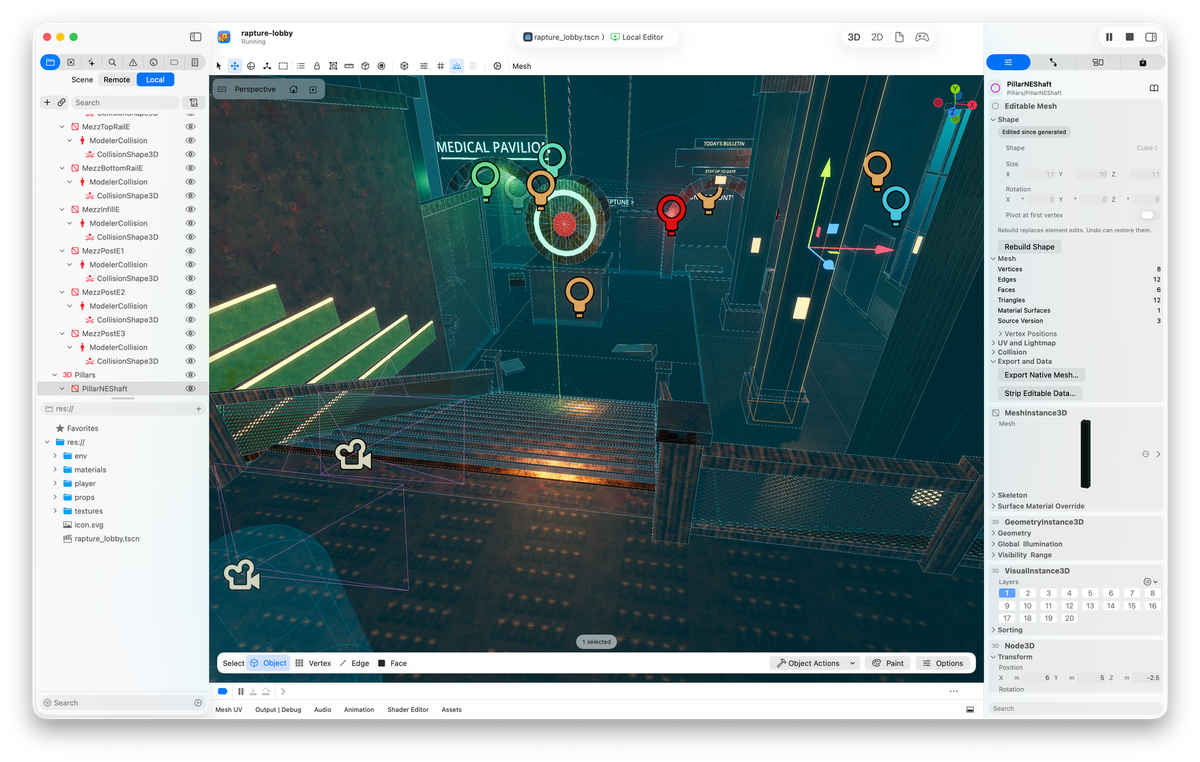
Earlier this year we introduced the Asset Placer and the Asset Browser, and today we are introducing the Xogot Modeler.
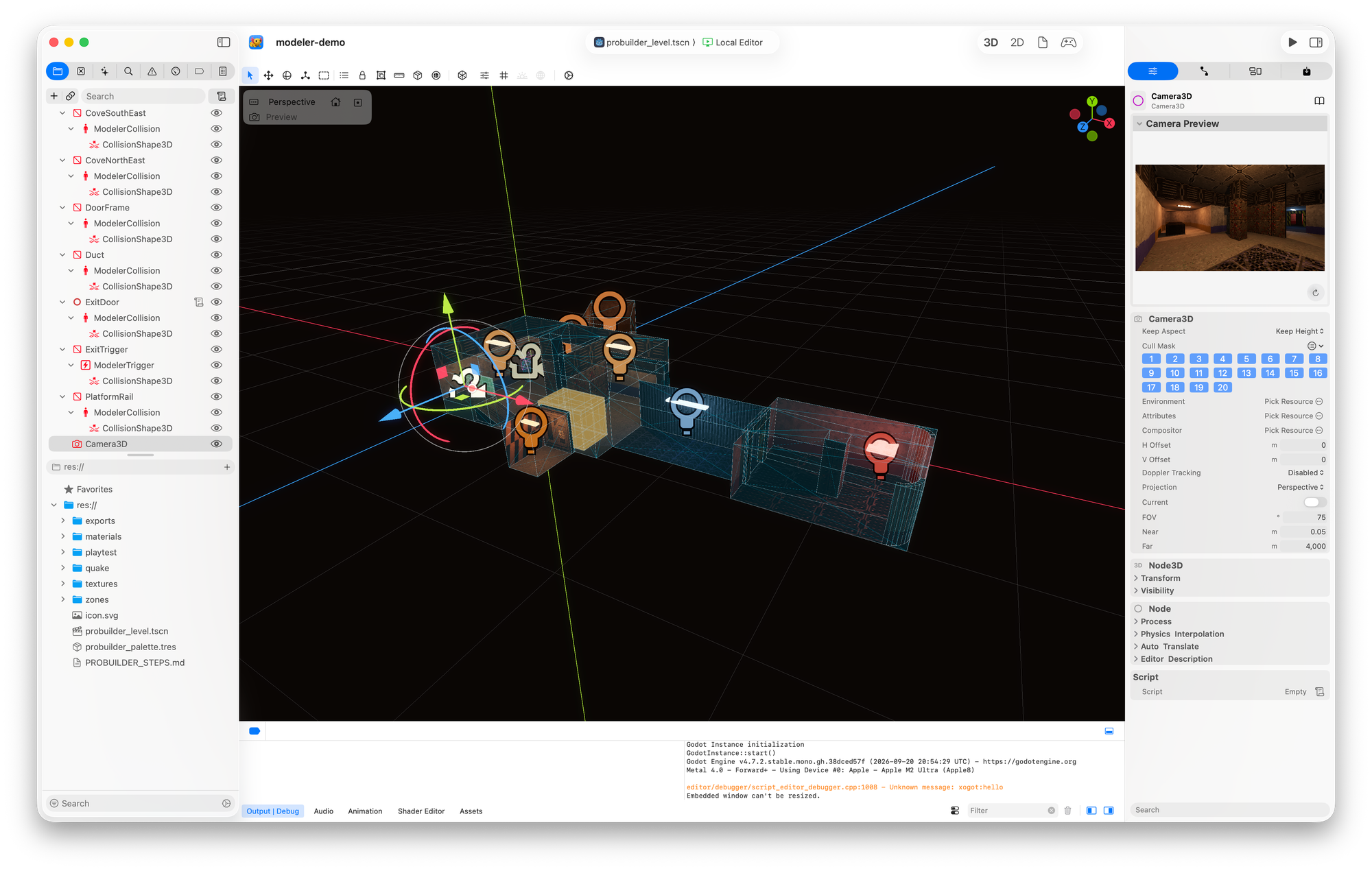
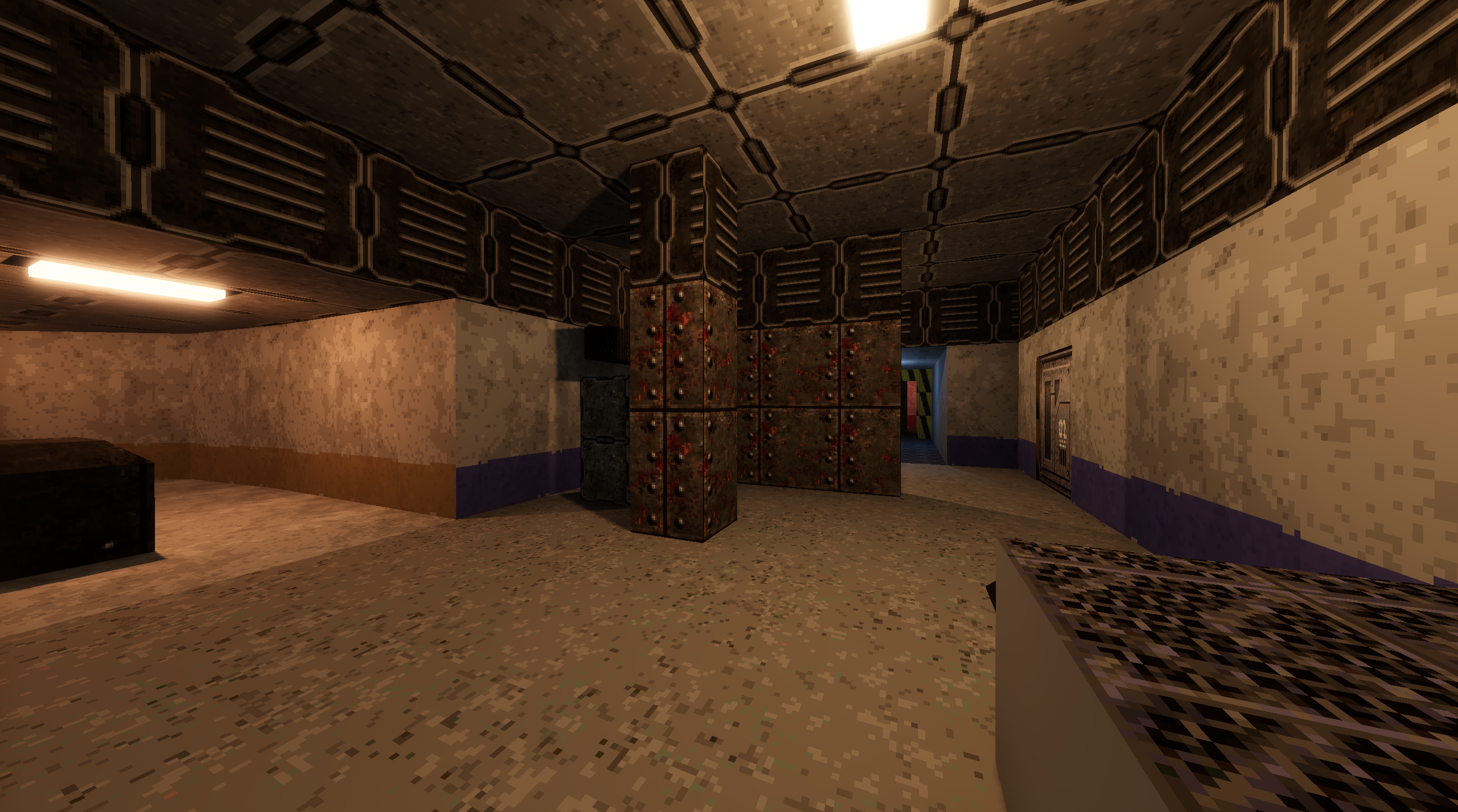
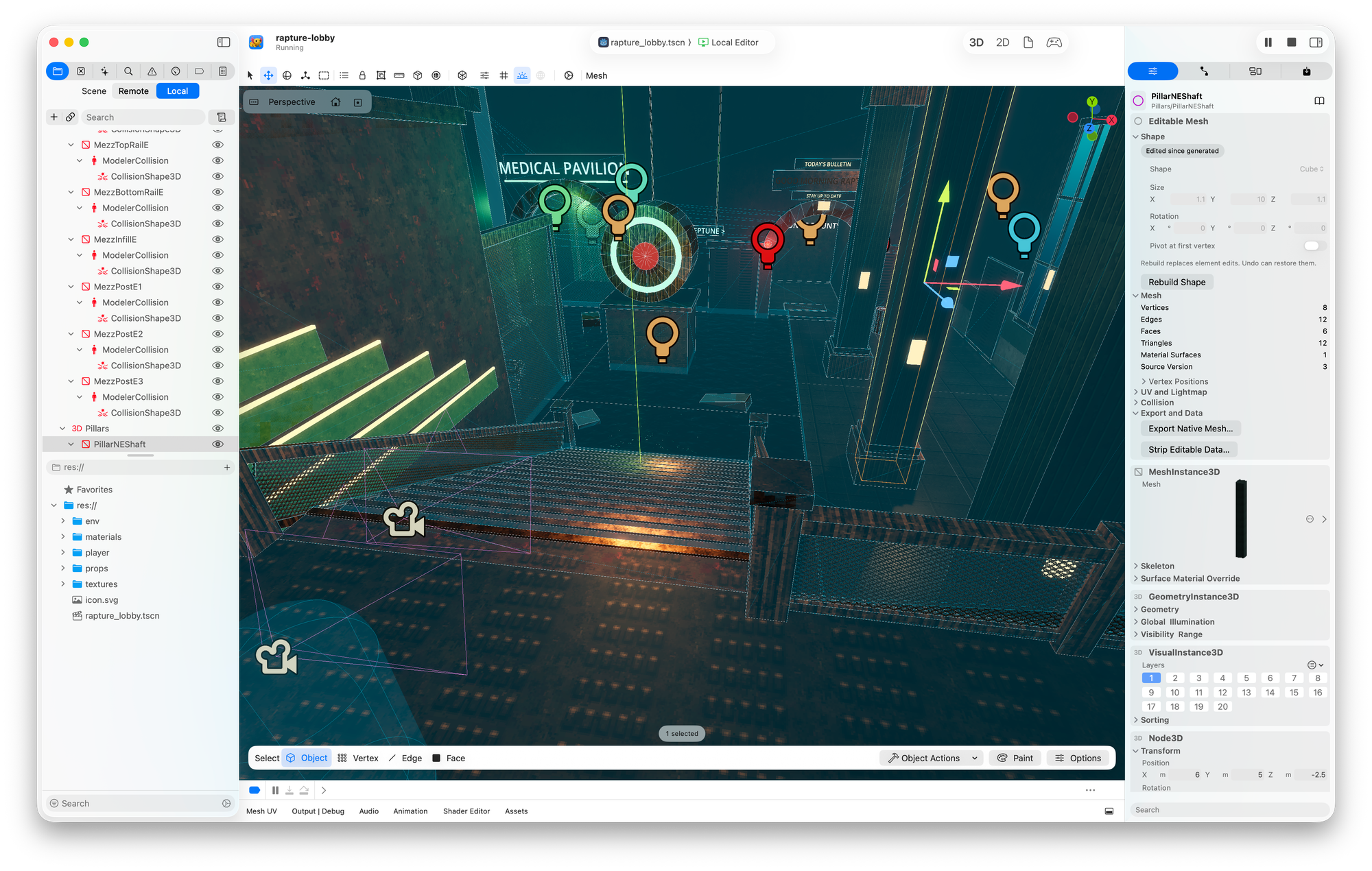
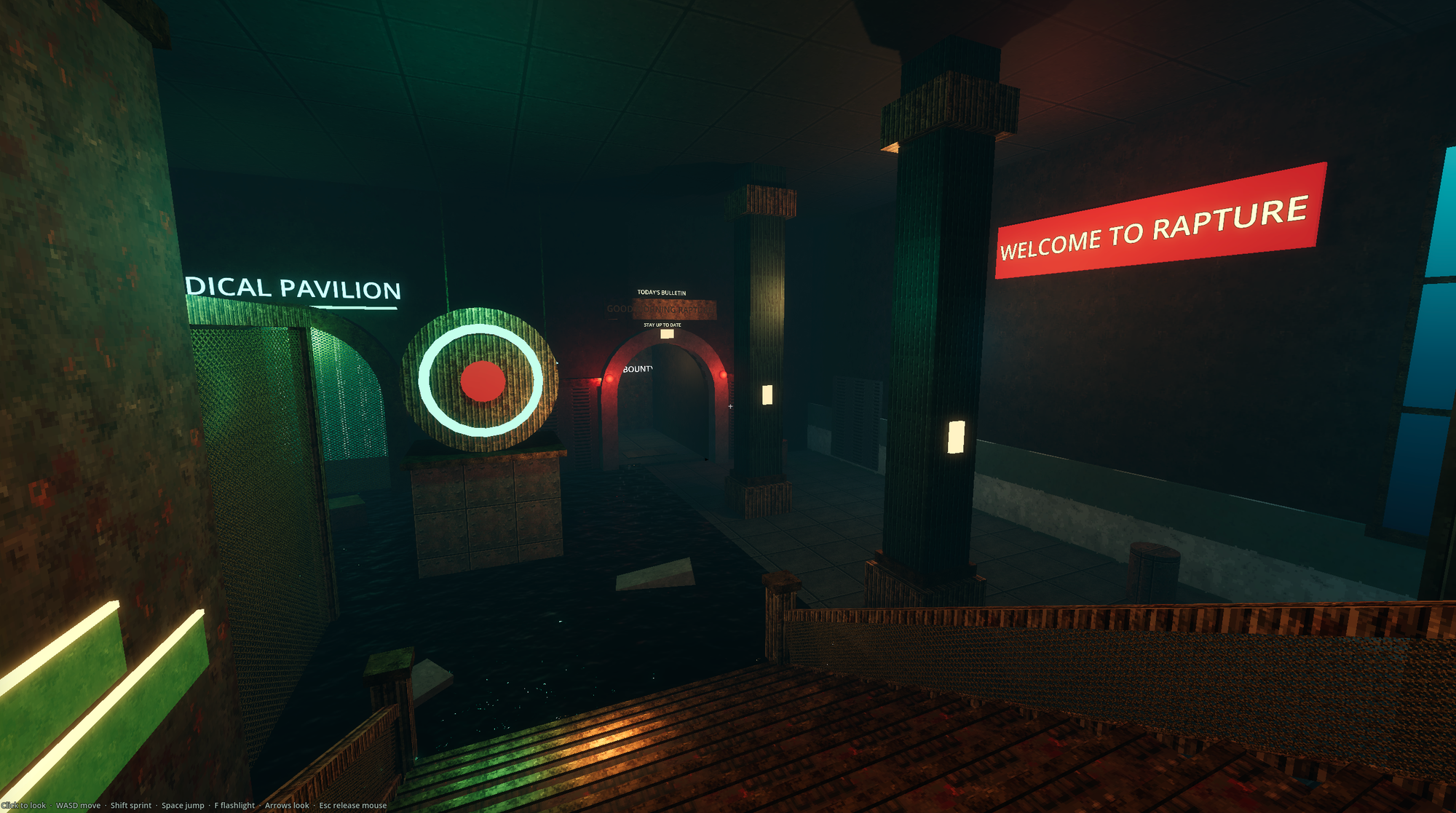
An example dungeon level, and a BioShock-inspired level built out of editable mesh primitives in Xogot's Modeler
This tool helps you prototype levels easily from within the editor, without having to go back and forth from Blender or another level designing tool, and you can build simple props for your environment right from Xogot. This tool is heavily inspired by Unity's ProBuilder and is now available to all users of Xogot for Mac (it is currently available on iOS on Xogot's Testflight and will soon be available to all users iOS via an AppStore update).
In the screenshots above, there are no pre-made assets imported - only textures to flavor the scenes.
Since I am no level designer, I wanted to make sure that we had an experience that would approximate what users are doing, so I followed the Viking Island YouTube video and replicated the scene using the Xogot Modeler. The tutorial was useful in spotting limitations in our Modeler and user experience gaps before we shipped it, be gentle, I lack any resemblance to artistic talent:
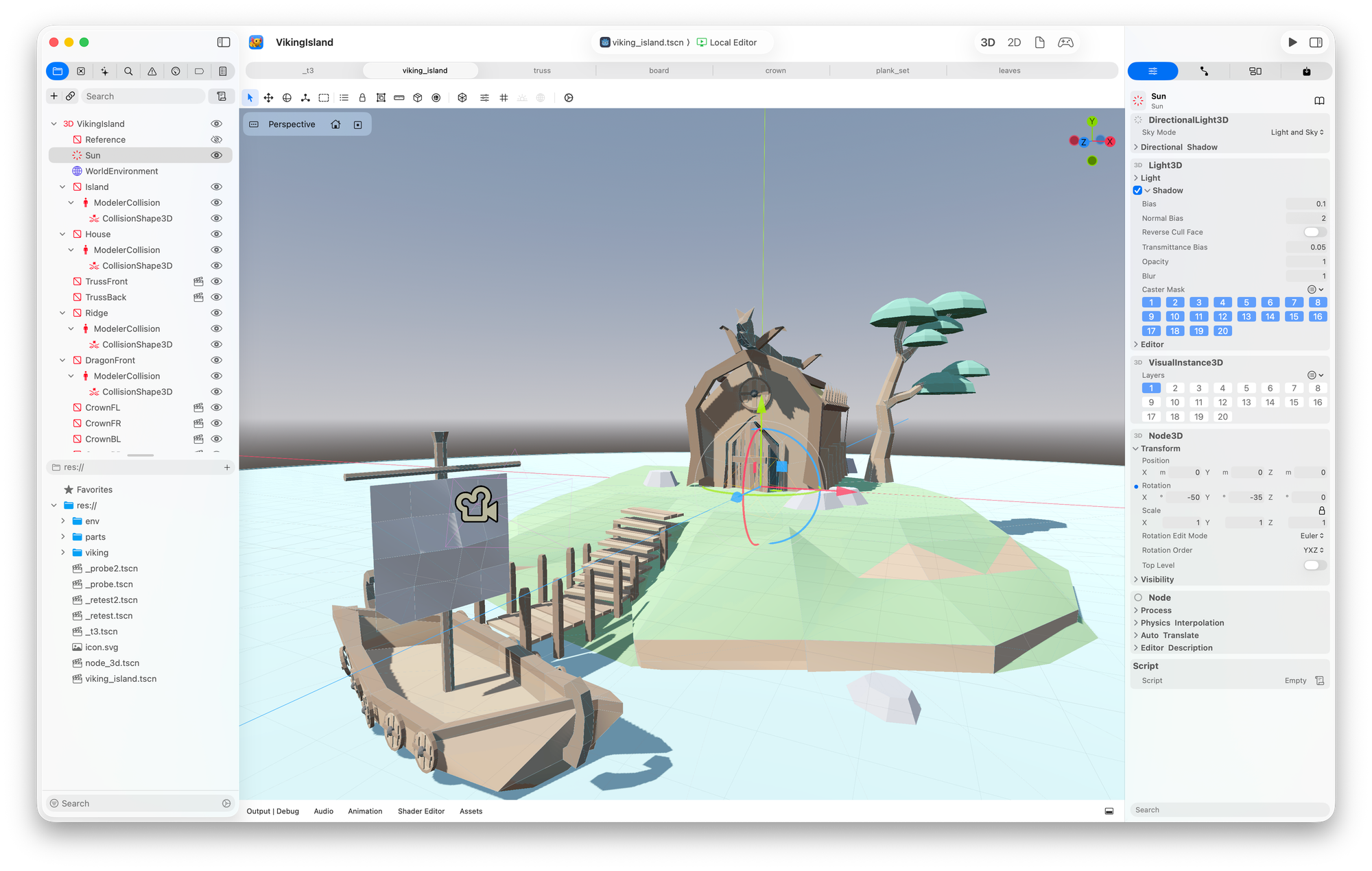
Behind the scenes, the Modeler is creating plain Godot Meshes, so projects edited with Xogot on Mac can be edited and used on Godot. The way that this works is that we add some metadata to each mesh that contains semantic information about the mesh - so we can surface editing capabilities in Xogot for you. You can either keep all the metadata in place, or you can choose to strip it and just keep the native meshes once you are done.
To use it, you would tap on this icon that takes some precious toolbar space:
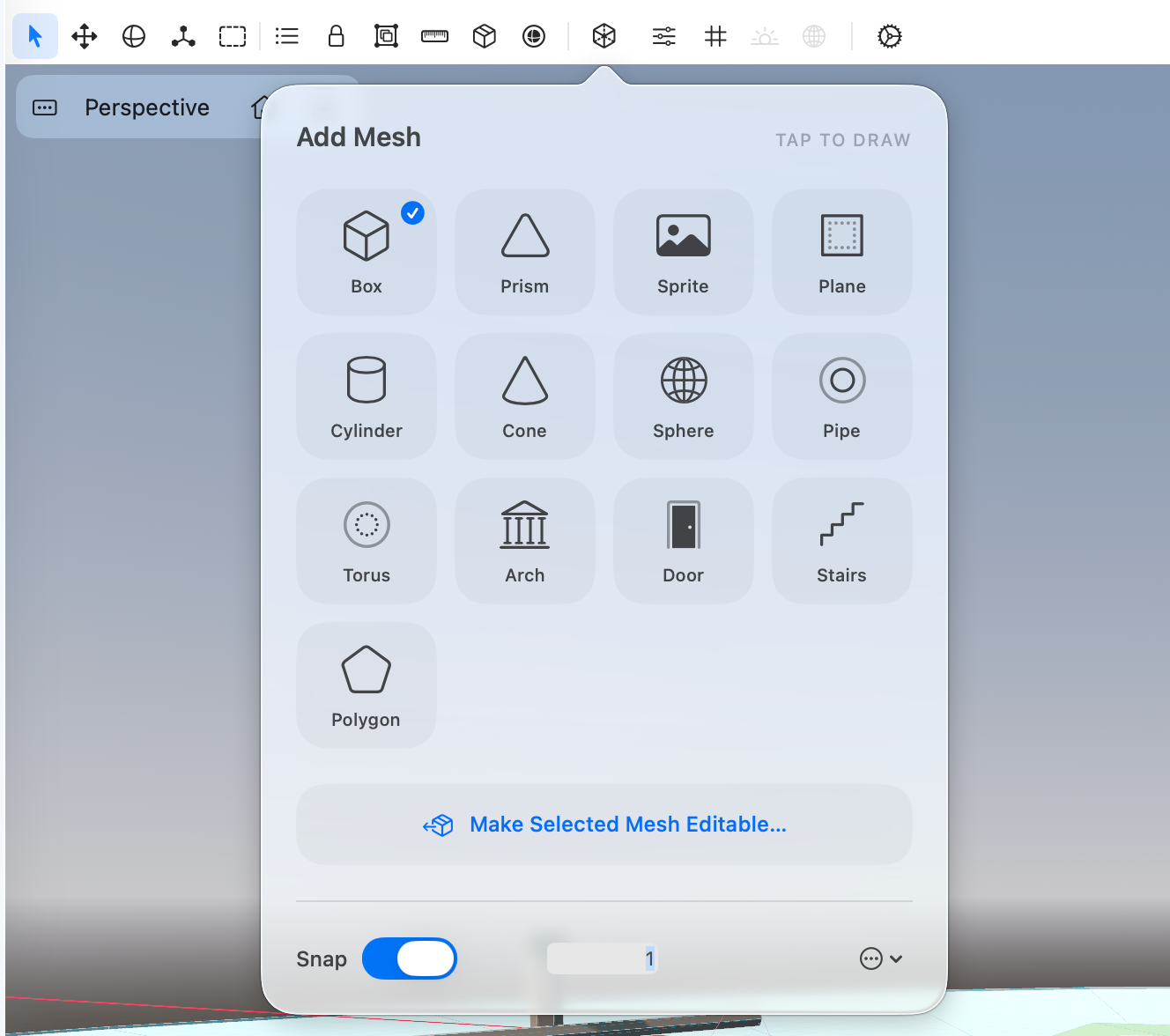
And this would give you a basic building block that you can alter - we provide various tools to alter your meshes at the face, edge or vertex levels. You can turn an existing Mesh that you already have and make it editable, and alter it directly in Xogot.
I did a very quick YouTube video doing a quick walkthrough of it here:
The primitives are simple, but even the most basic primitive with a little extrusion can be used to quickly mockup a level, like I do in this video
Or if you are feeling like replicating the curved worlds of some games, you can use the Bezier tool to create and edit your wiggly levels:
When you create these editable meshes, you automatically get a StaticBody3D for it and a CollisionShape3D for it, so your walls, floors and obstacles behave the way you intend them to be (you can of remove these generate nodes if you want). We also include a UV Editor so you can adjust your textures to the scene.
During the development of this feature we collected lot of future ideas of what could be done with it, but we are not experts at game level design, and we do not really have hands-on experience on how developers are using these tools - we only know that this was a heavily requested feature and we did the best we could with our background.
We would love to hear from seasoned game developers what is missing and how we can improve the modeler to be better for your day to day work.
You can take it for a spin today on Mac from https://xogot.com/mac and you can take it today for a spin on iOS by signing up to our TestFlight at https://beta.xogot.com
Our friend Marco put together an entire video showing how to use the Modeler and the Asset Placer together to create a level: